Optimise workflows for high-volume operations. Whether orders are taken in-store or received online, receipts will be printed automatically, helping your team coordinate more efficiently.
To automate printing for all orders (including online orders from NeroWeb), you must configure the NeroEPOS Print Server. This acts as the bridge between your cloud dashboard and your physical printer.
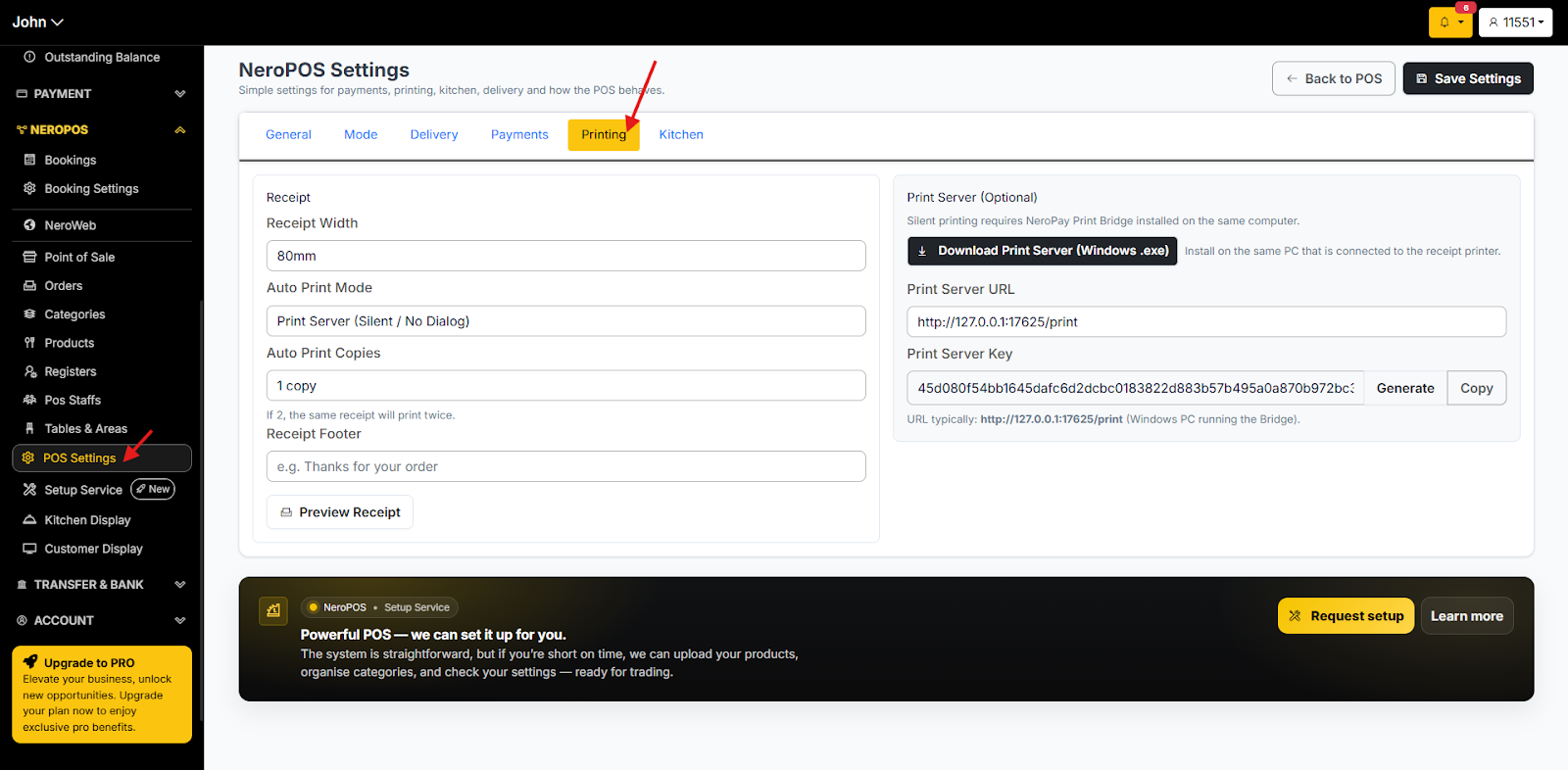
1. Go to “NEROPOS -> Pos Setting”. Click on the Printing Tab
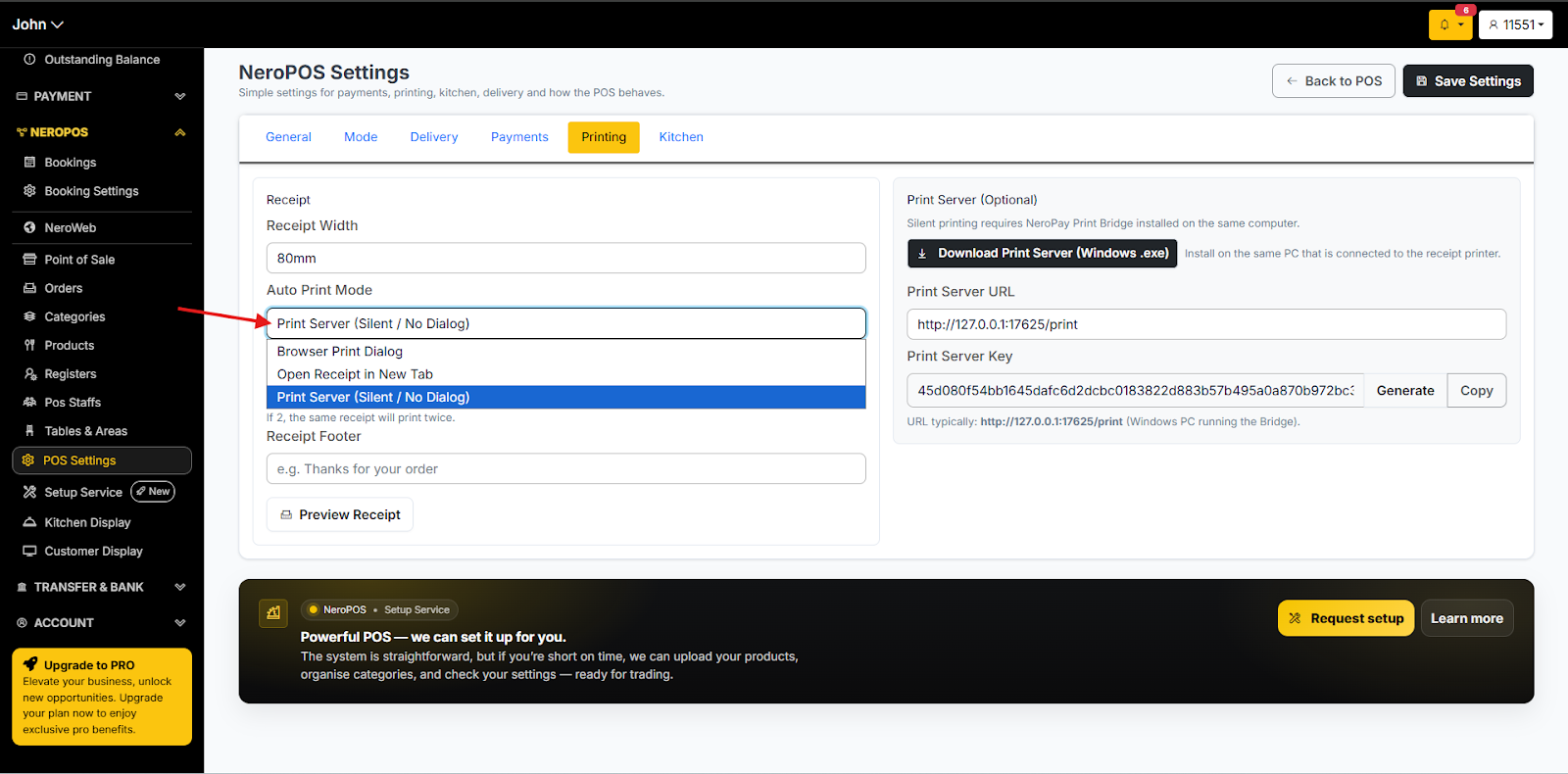
2. Choose among the options under Auto Print Mode. Print Server
Download your print server, and generate a Print Server URL
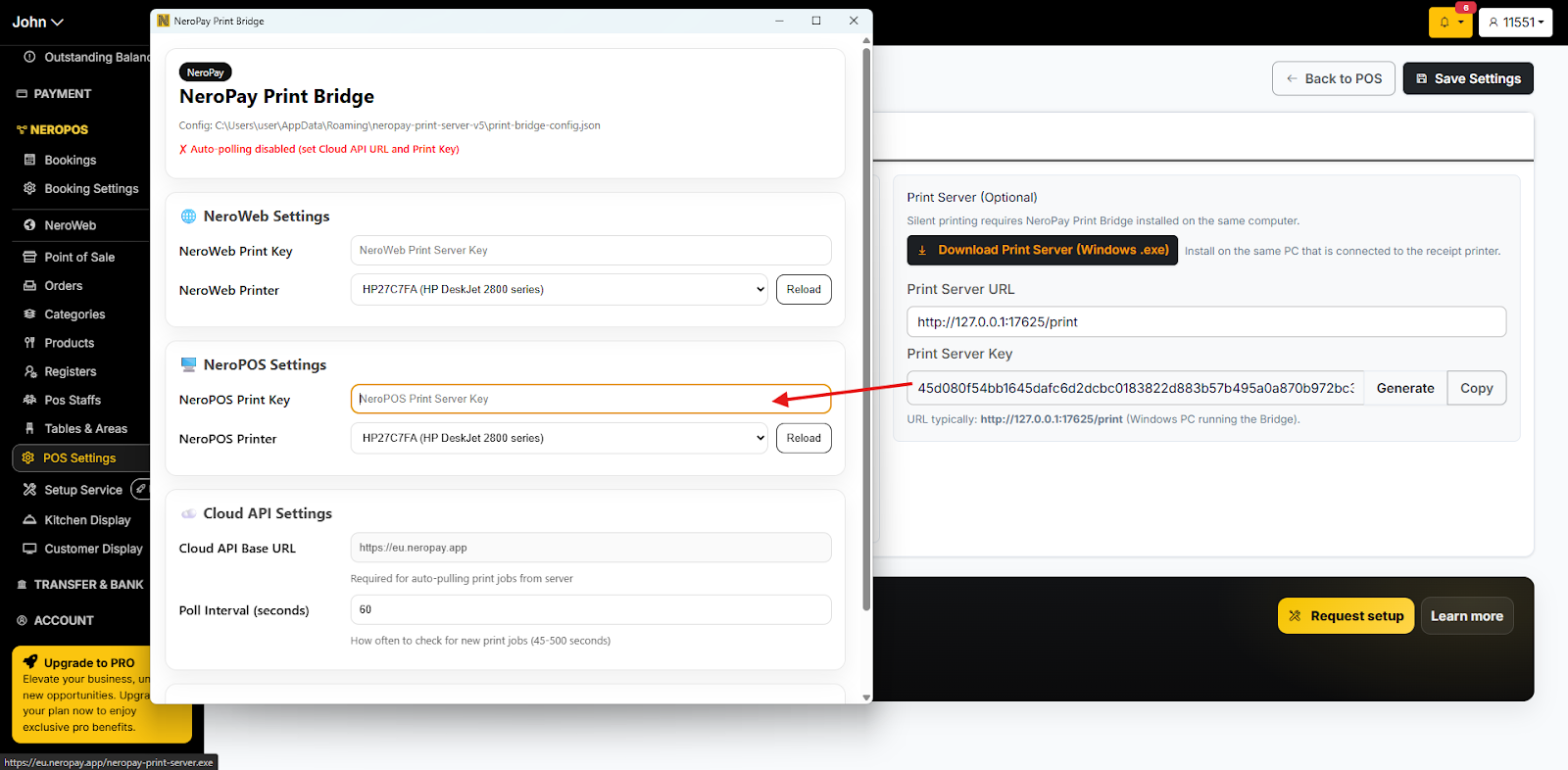
3. Open the server you just downloaded, then copy and paste the NeroEPOS Print Server Key into the corresponding field.
And choose the right printer in the NeroPOS Printer field.
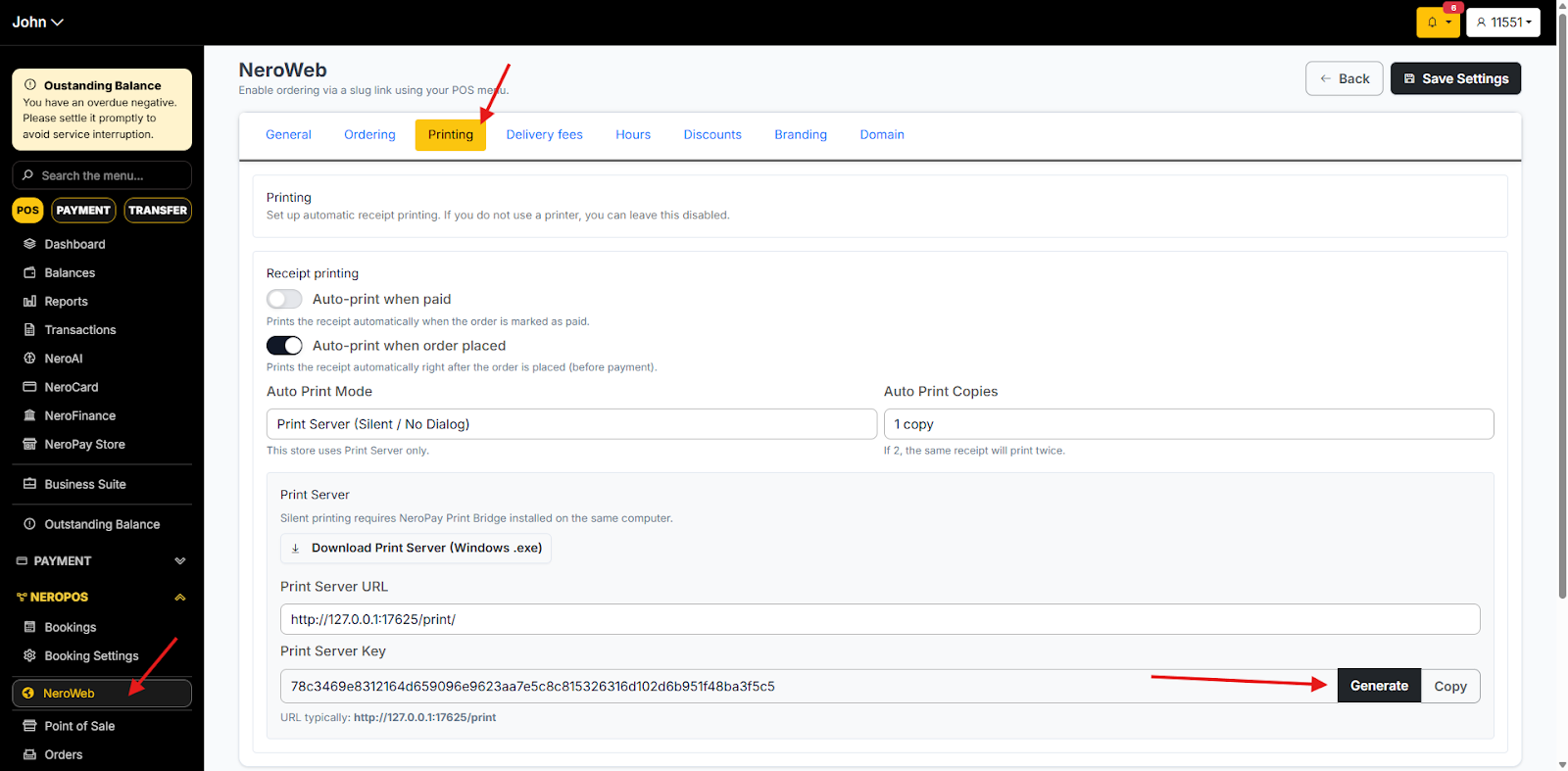
4. Go back to the dashboard and go to NEROPOS -> NeroWeb
Click on the Printing Tab and generate the key
Copy and paste to the corresponding field on the server
5. Remember to save all settings on the server.
If you have any questions, please contact us at support@neropay.app.