Use AI to add your entire menu in one go. Simply upload an image or PDF of your menu, and the system will take care of the rest.
Please note that uploads are subject to limits within a certain time period; bulk or repeated uploads are not supported.
NeroPOS: Bulk Uploading Products with NeroAI
Manually entering a menu can be time-consuming. Use NeroAI to scan a photo or PDF of your physical menu and automatically populate your POS and online store.
1. Accessing the AI Importer
- Log In: Go toNeroPay Account.
- Navigate: From the main dashboard, click on “NeroPOS” in the left sidebar.
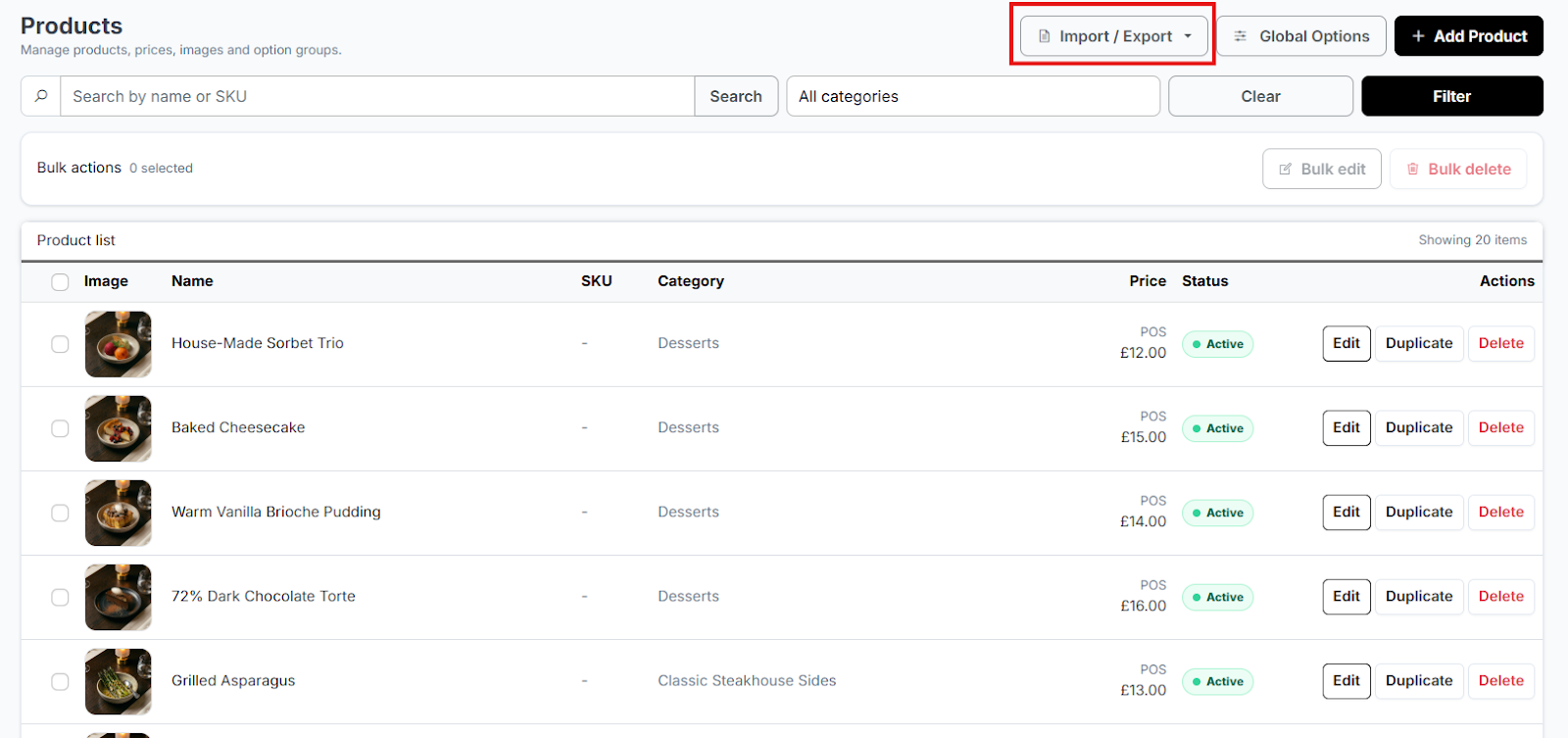
- Select Products: Click on the “Products” tab.
- Open AI Tool: Click the “Import/Export” button at the top right, then select “Upload Products with AI” from the dropdown menu.

2. Scanning Your Menu
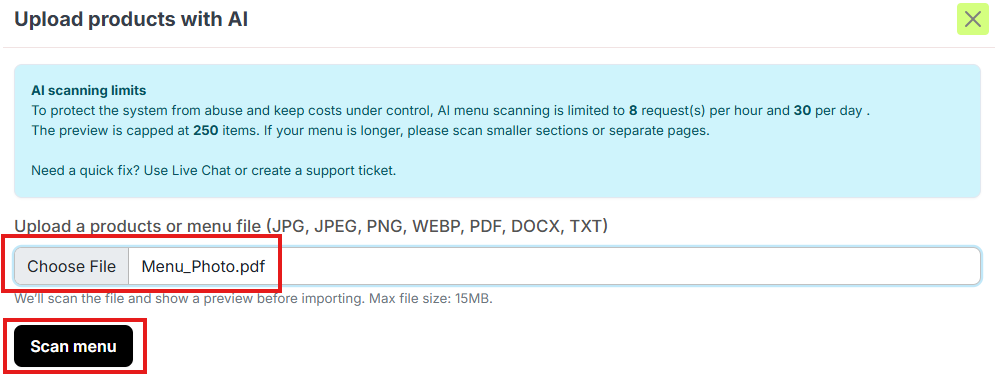
- Upload Image: Click the upload area to select a clear photo or digital copy of your physical menu (ensure prices and item names are legible).
- Scan: Click the “Scan Menu” button
- Processing: NeroAI will now analyse the text, identifying Categories, Product Names, and Prices.
3. Reviewing the Scanned Data
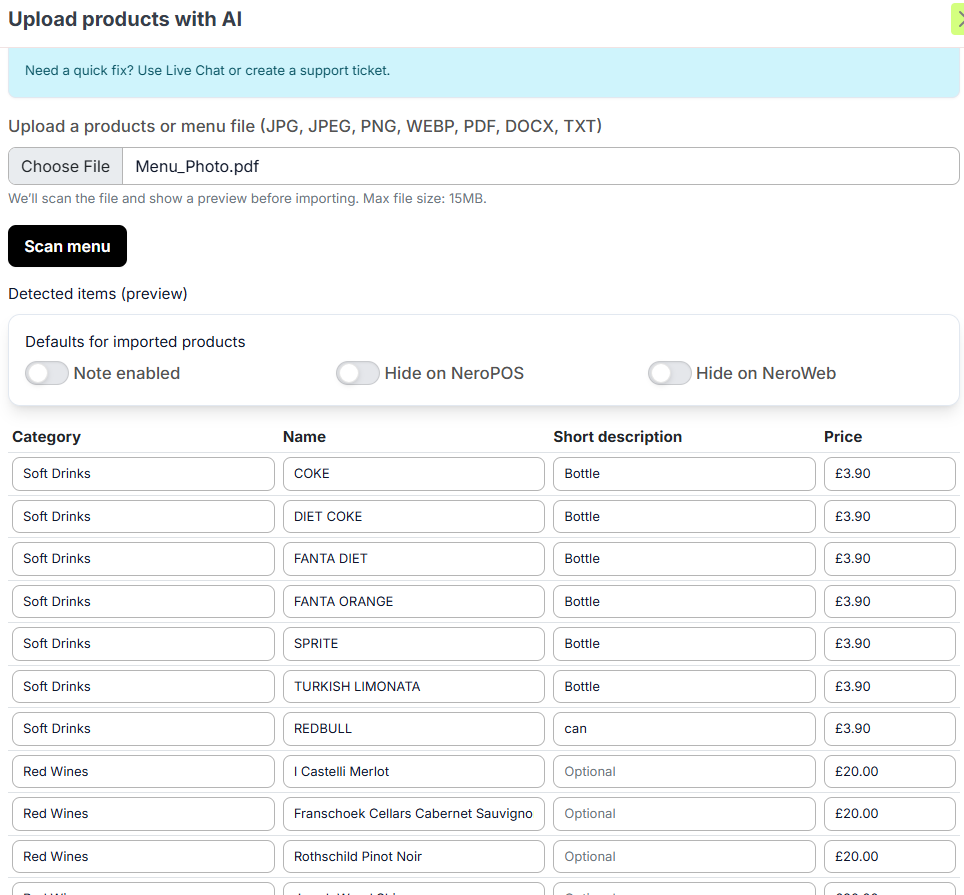
Once the scan is complete, your menu will appear in a clean, organised list.
- Verify Information: Check that the categories and prices have been captured correctly.
- Bulk Visibility Settings: If there are items you sell in-store but do not want on your website, use the bulk selection tool to click “Hide on NeroWeb.” This prevents them from appearing on your online store while keeping them in your POS.
4. Finalising the Import
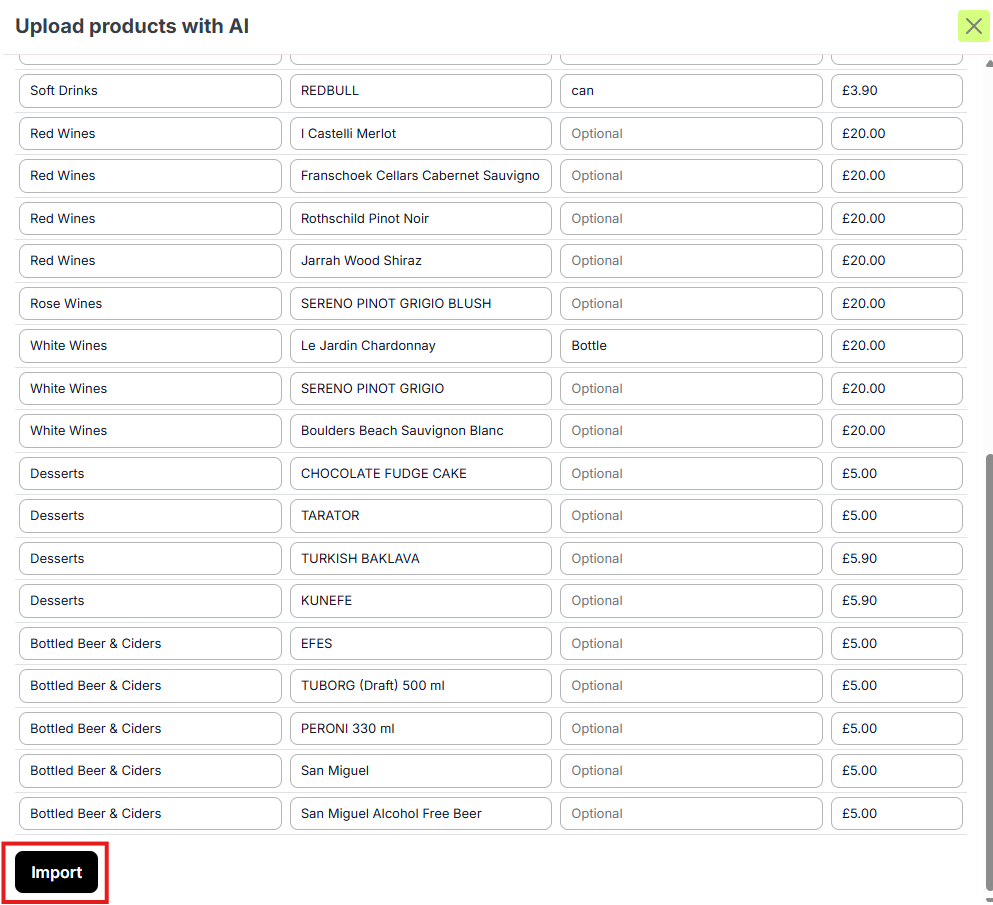
- Confirm: Once you are happy with the list, click the “Import” button.
- Syncing: The system will automatically create all the categories and products in your database. These will now be visible in both your NeroPOS terminal and your NeroWeb online store
[TIP]
Better Quality = Better Results: For the most accurate scan, ensure the lighting is good and the menu is flat. If NeroAI misses a price, you can still manually edit the item after the import is finished.
If you have any questions, please contact us via email at support@neropay.app