Create Staff Login
Set up secure access for your in-store team. All information is managed within your NeroPay account, so you can create a dedicated login for staff members. This ensures that sensitive data—such as financial reports, transaction history, and transfer records—remains protected.
Staff logins will only have access to the EPOS order-taking functions.
NeroPOS: Staff & Till Management Setup
Follow these steps to generate your POS access link and create individual login credentials for your staff.
1. Locating Your POS Login Link
Before staff can log in, you must provide them with the specific web address for your terminal.
- Navigate: From your dashboard, go to NeroPOS > POS Settings.
- Find the Link: At the top of the General page, locate the field labelled “POS Login Link.”
- Share: Copy this URL and share it with your staff (or bookmark it on your store’s tablets/tills).

2. Creating Staff Logins
Once you have the link ready, you need to create unique credentials for each team member.
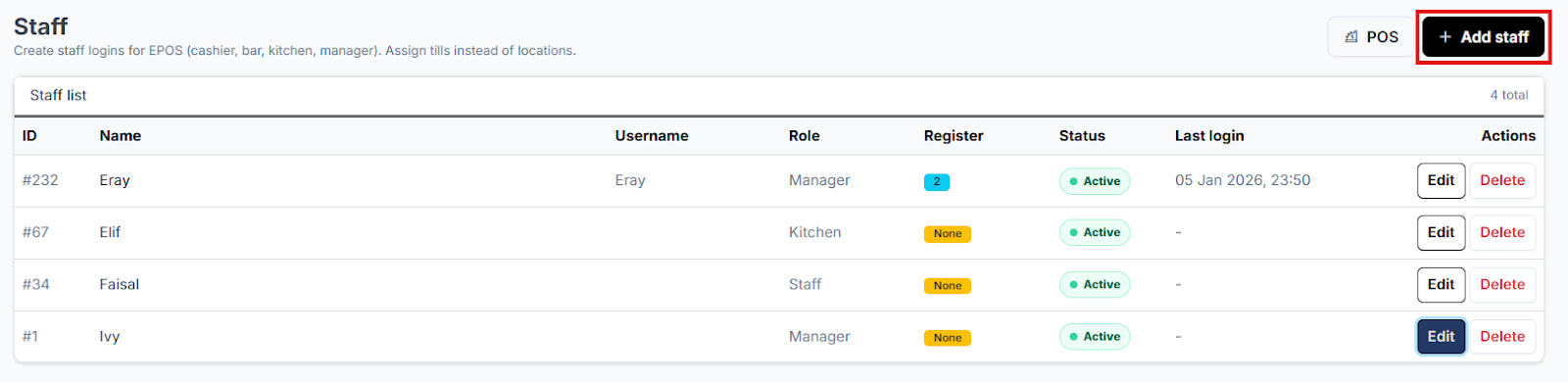
- Navigate: From the dashboard, go to NeroPOS > POS Staff.
- Add Member: Click the “Add Staff” button in the top right corner.
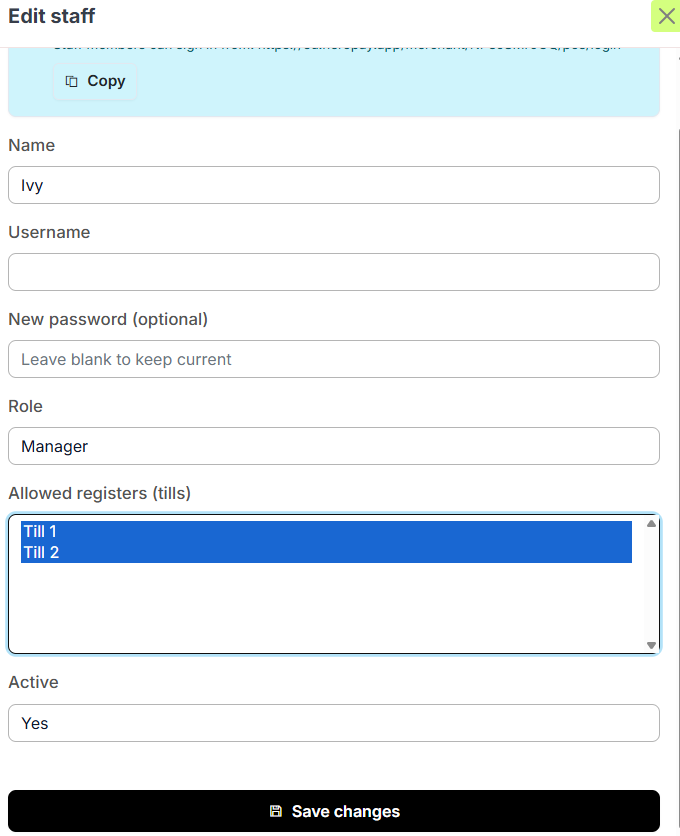
- Enter Details: Name: The staff member\'s full name / Username & Password: Create a unique login that they will use to enter the system.
- Assign Role: Select a role from the dropdown (e.g., “Cashier”). This defines their permission levels within the POS.
- Assign Till: Select the specific Till this staff member is authorised to use.
- Confirm: Click “Create Staff” to save the profile.
3. Accessing the System
Your staff can now use the credentials you created to start their shift:
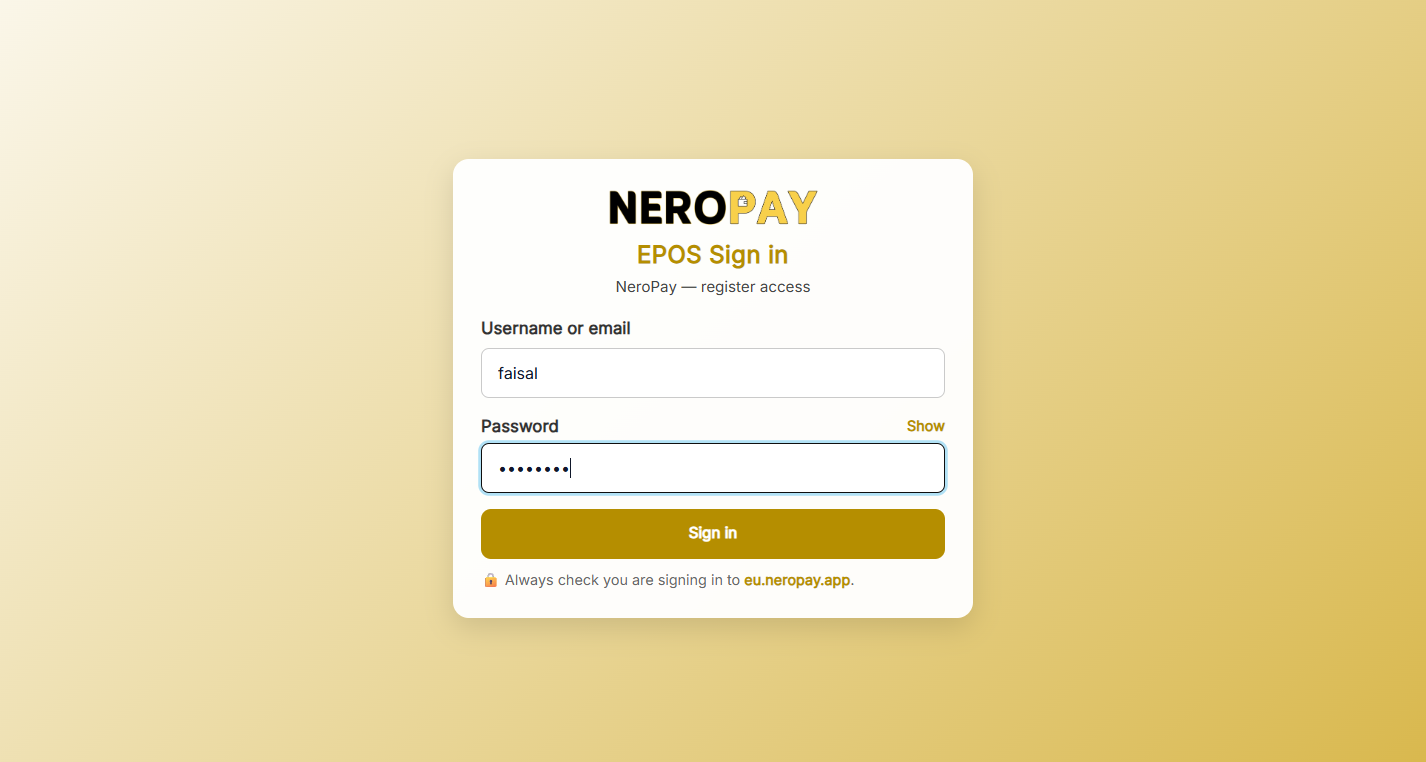
- They must open the POS Login Link you retrieved in Step 1.
- They enter their Username and Password.
- Security Note: Using this link ensures staff only see the order-taking interface. They will not have access to your main dashboard, financial reports, or business settings.
4. Saving Your Settings
- Save: As with all changes in NeroPay, ensure you click “Save Settings” on the main pages to ensure all new staff permissions and till assignments are synced to your live system.
[!TIP]
Unique Logins for Accountability: Always create separate logins for each staff member rather than sharing one. This allows you to track who processed which order and manage discrepancies more effectively.
If you have any questions, please contact us via email at support@neropay.app