How it works
Preauthorised payment is a two-step process:
- Step 1 — Authorise: The customer\'s card is held for an amount. No money is taken yet.
- Step 2 — Capture or Cancel: You either collect the funds (Capture) or release the hold (Cancel).
| Typical use cases: car rental deposits, hotel check-ins, damage guarantees — anywhere the final charge may differ from the initial amount. |
Setting it up
Go to: Dashboard → Account → Payment Settings → Settings → Capture Method
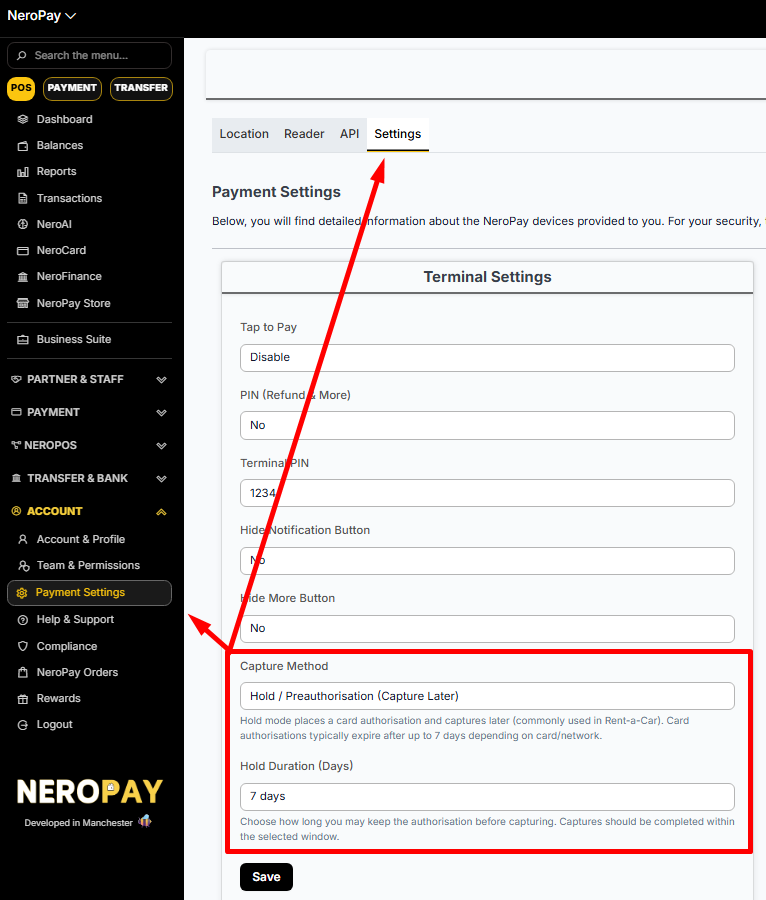
Select Manual. Then set your Hold Duration (how many days to keep the authorisation open before capturing). Maximum is 7 days.
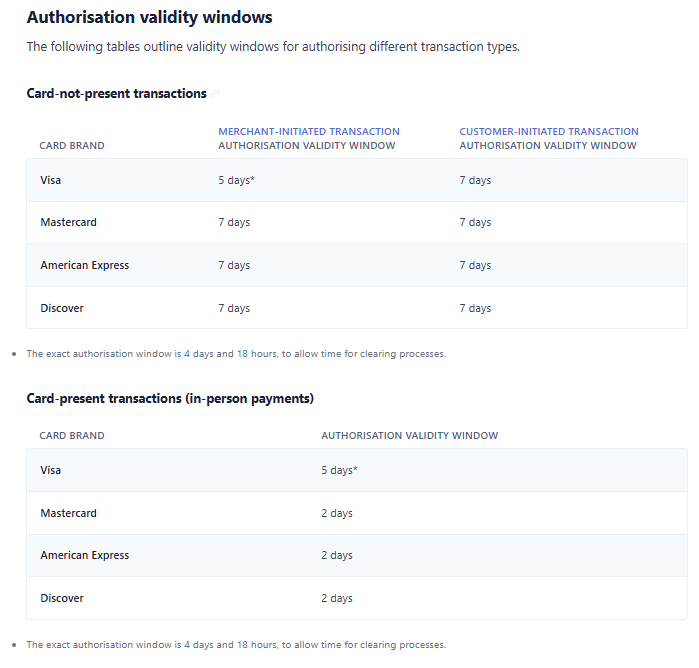
| Card networks set their own expiry limits — in-person payments often expire in just 2 days for Mastercard, Amex, and Discover. Always capture before the window closes, or the hold will drop and you cannot collect funds. |
How to Capture or Cancel
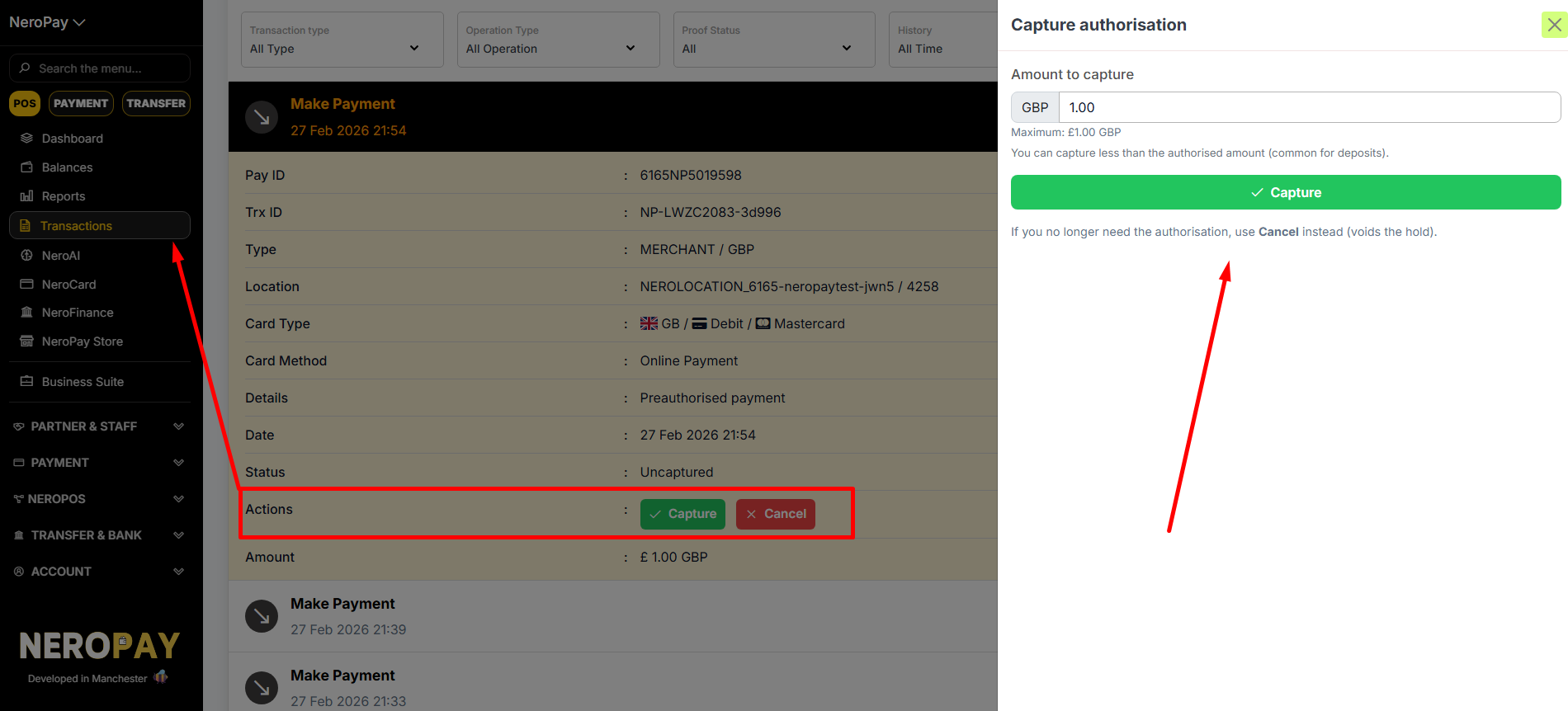
Once a payment is preauthorised, it shows as Uncaptured. You can manage it from two places:
From the Dashboard
Transactions → select the transaction → click Capture or Cancel
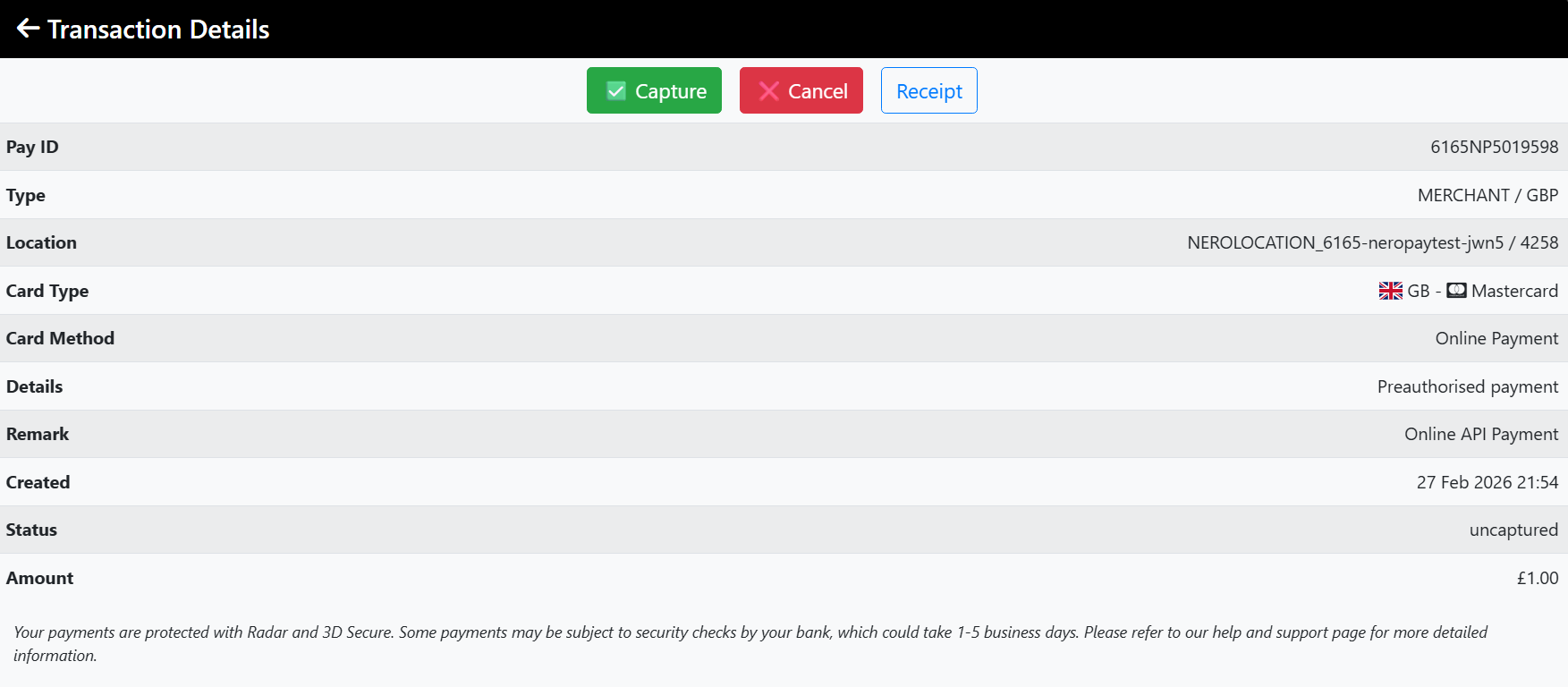
From the Terminal
Transactions → select the transaction → tap Capture or Cancel
Capturing a different amount
You can capture less than the original authorised amount. The difference is automatically released back to the customer.
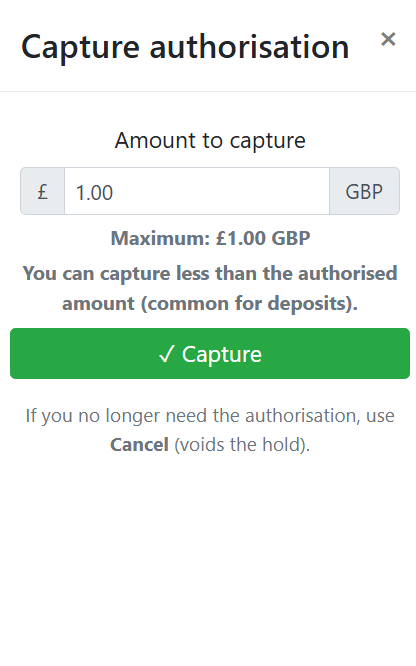
Example: You authorise £200 as a deposit. The final charge is £35. You capture £35 — the remaining £165 is released automatically.
Common questions
What if I don\'t capture in time?
The authorisation expires and the hold is released. No funds can be collected. You would need to take a new payment.
Does the customer get charged straight away?
No. They see a pending hold on their account. The charge only goes through when you capture. If you cancel, the hold disappears with no charge.
Does this apply to online payments, too?
Yes. When Manual capture is enabled, it applies to all payment types — terminal, online, payment links, and tap-to-pay.
Need help? support@neropay.com