Flexibility for on-demand receipt generation.
Managing Receipt Printing Settings
Our system offers two printing modes to suit your workflow: Automatic (prints immediately after payment) and Manual (requires user confirmation). In this document, you will learn how to print the receipt manually.
1. How to Configure Printing Preferences
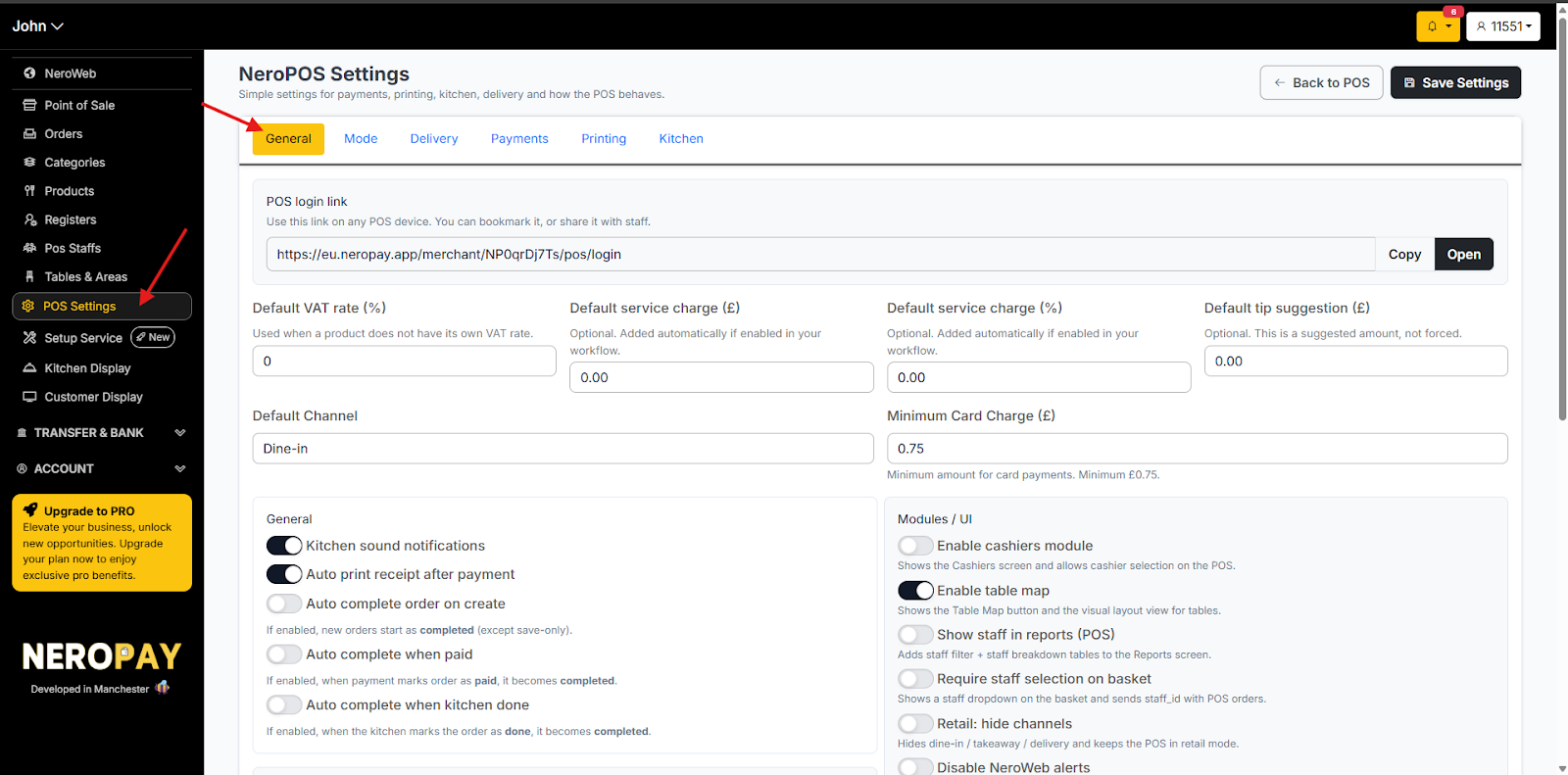
- Navigate to Settings: Go to NEROPOS -> POS Settings.
- Open General Settings: Select the General tab.
2. Set your Preference:
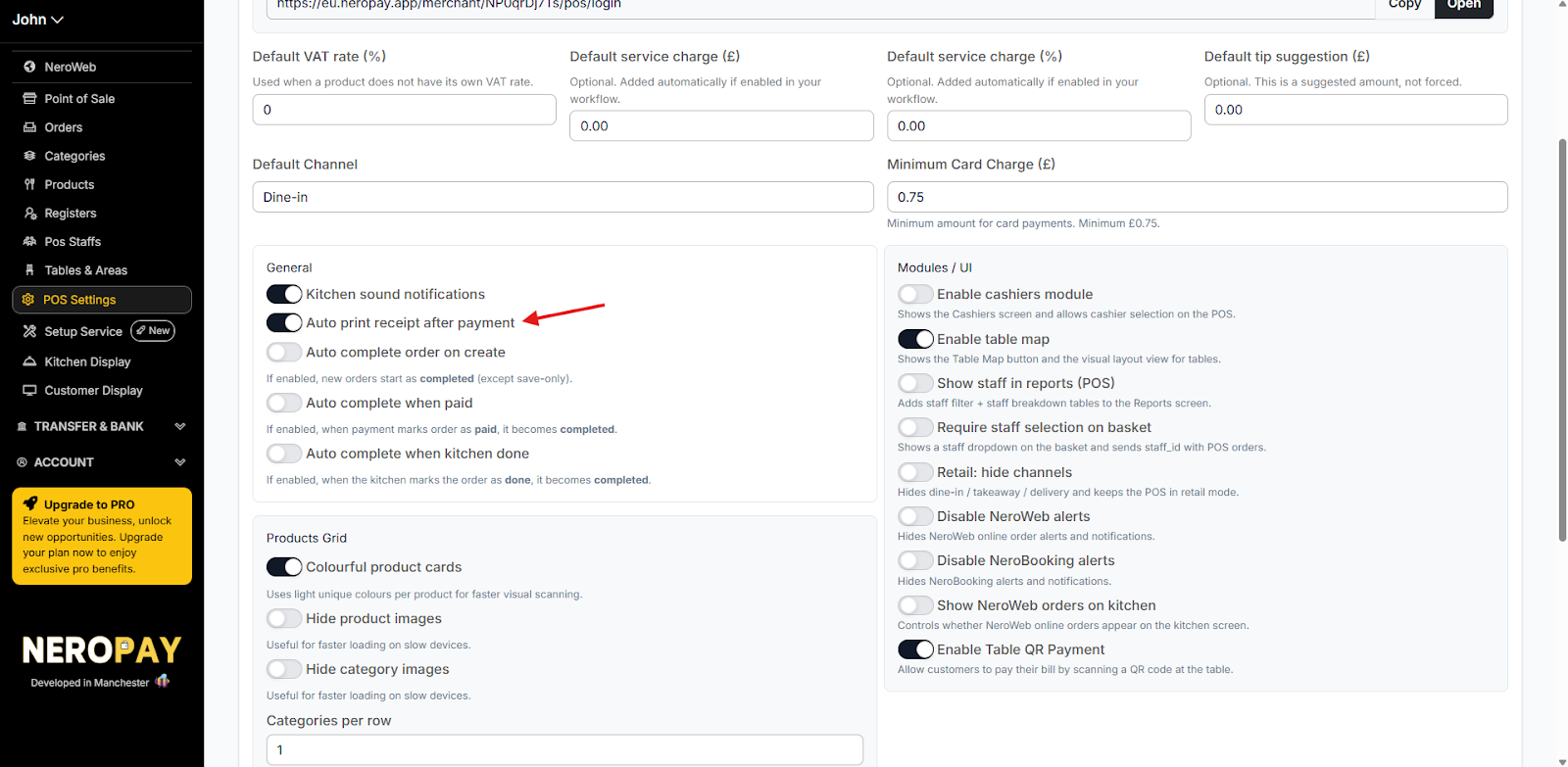
Toggle the “Auto print receipt after payment” switch to ON.
3. Testing the Setup
To verify your new settings, process a test transaction:
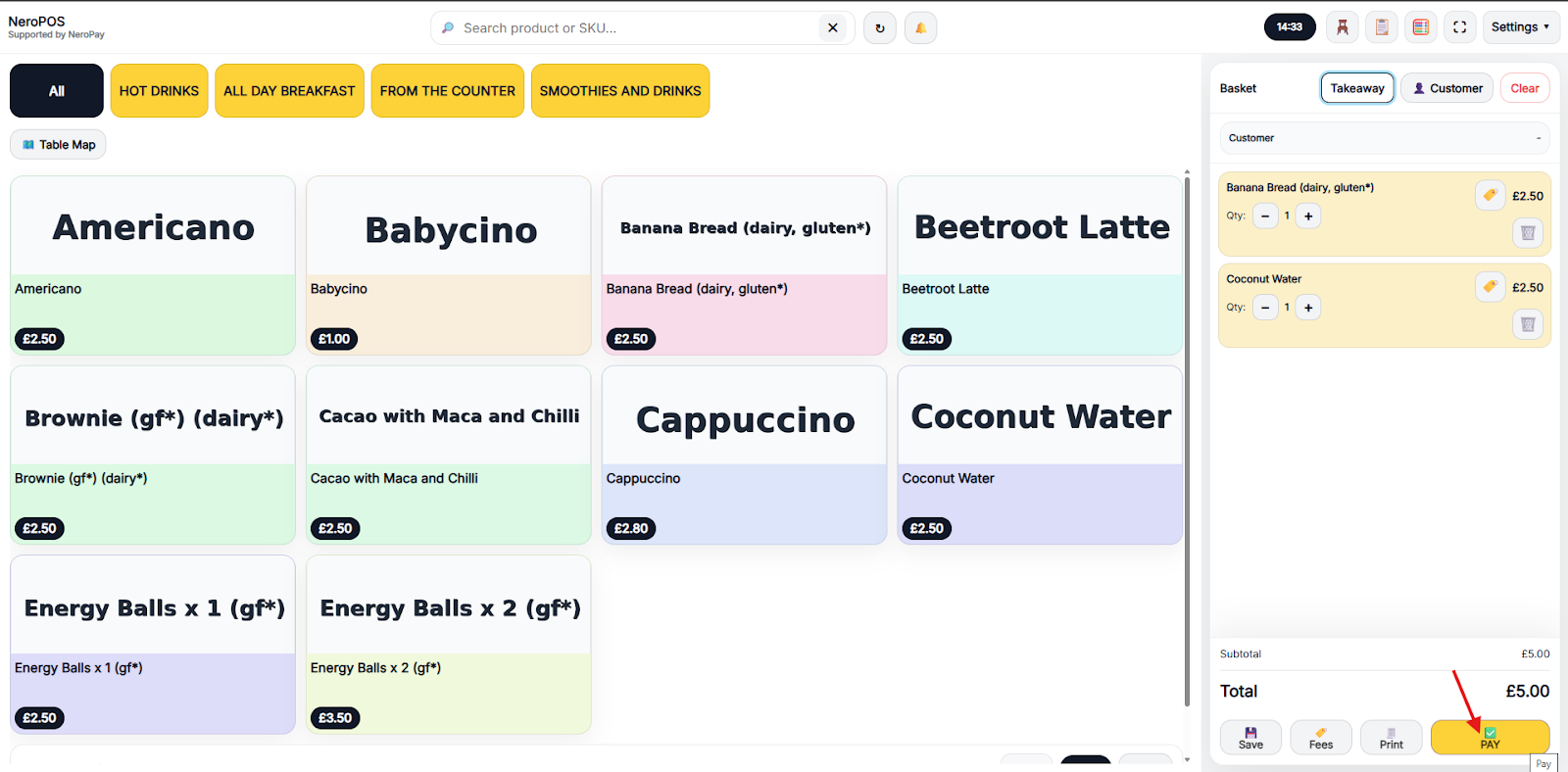
- Go to NEROPOS -> Point of Sale.
- Complete an order
4. Confirmation:
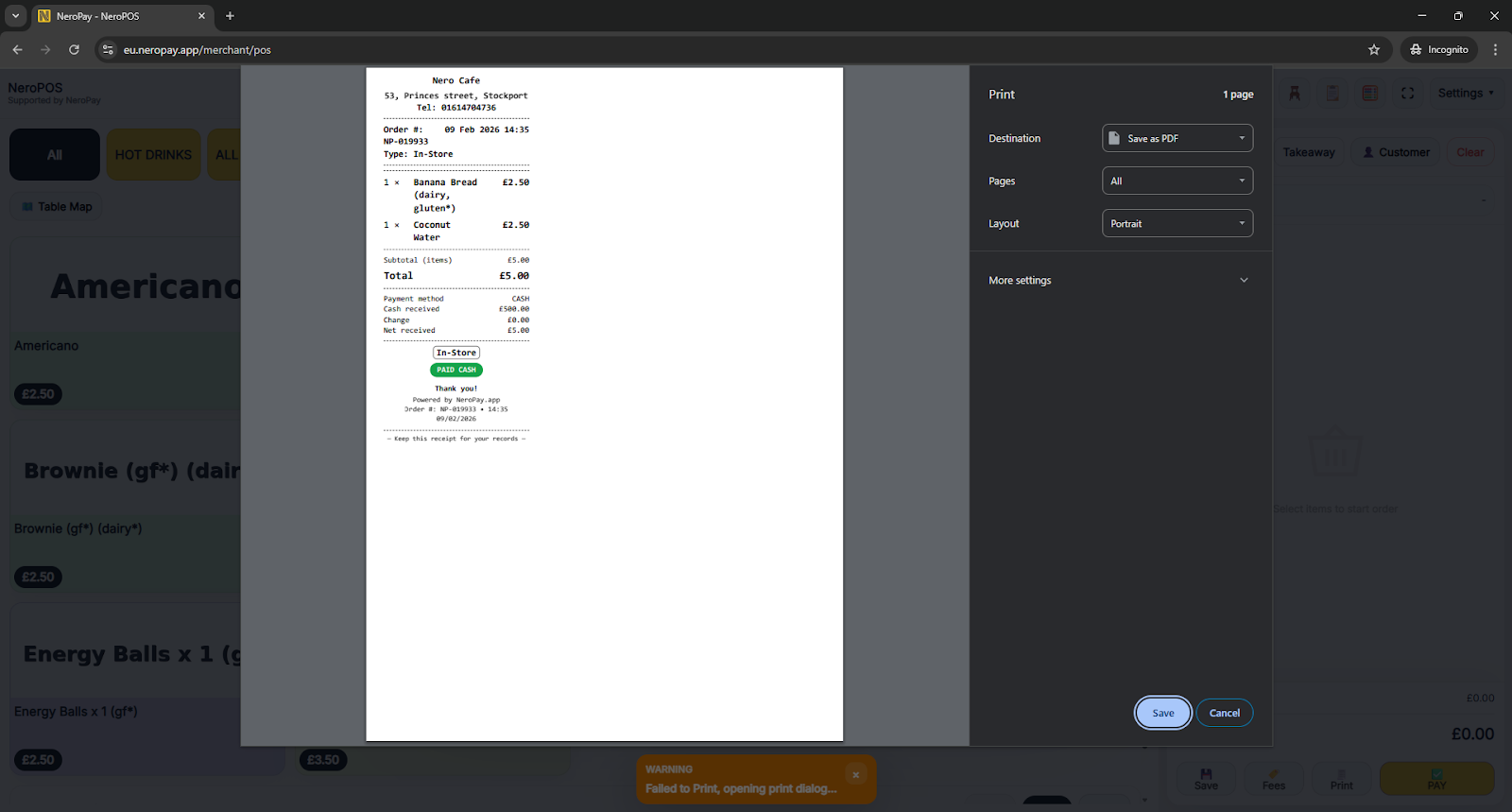
If Manual is enabled, a digital confirmation window will appear, allowing you to choose whether to print or skip.
If you have any questions, please contact us at support@neropay.app