Here’s the step-by-step process to turn the NeroPay browser page into an “app” (iPhone / iPad Safari — Add to Home Screen):
Open Safari
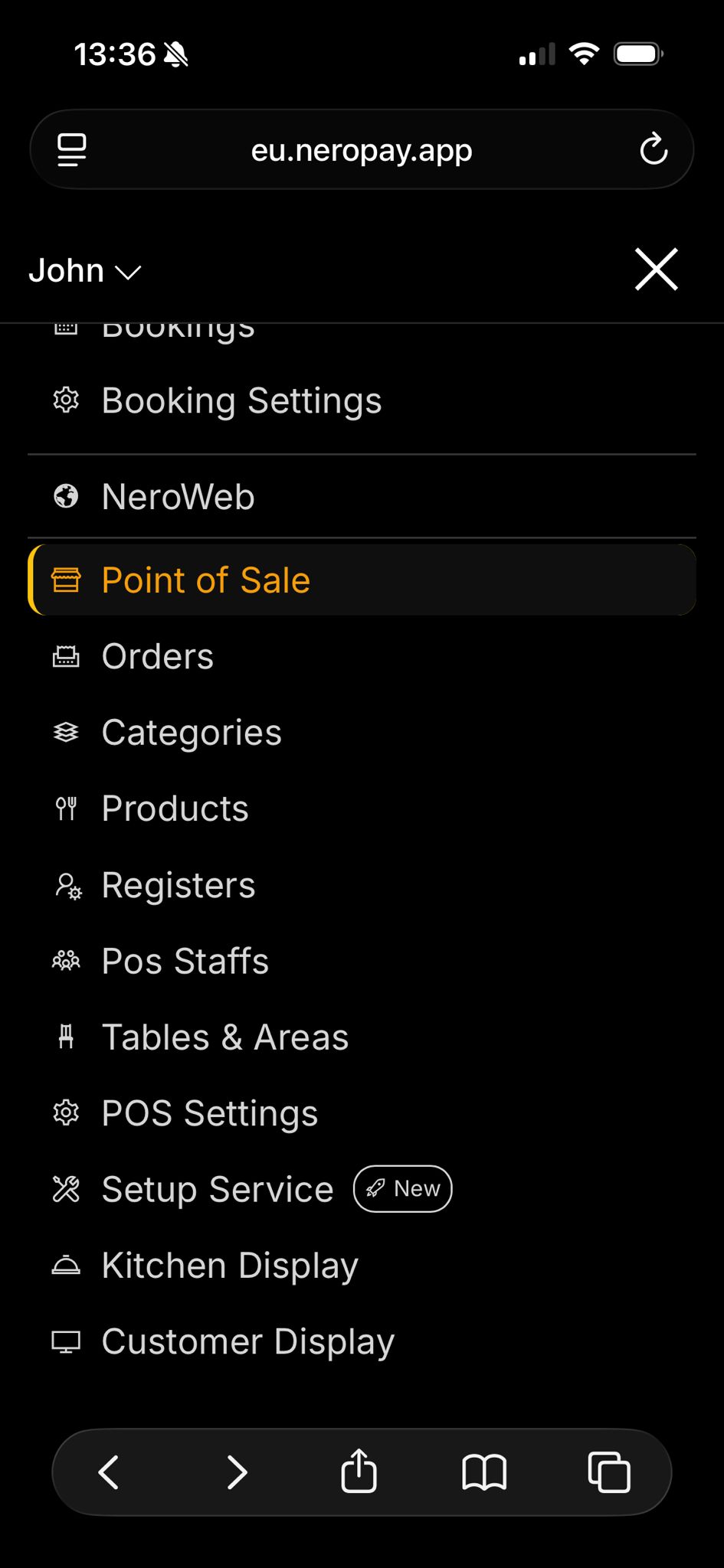
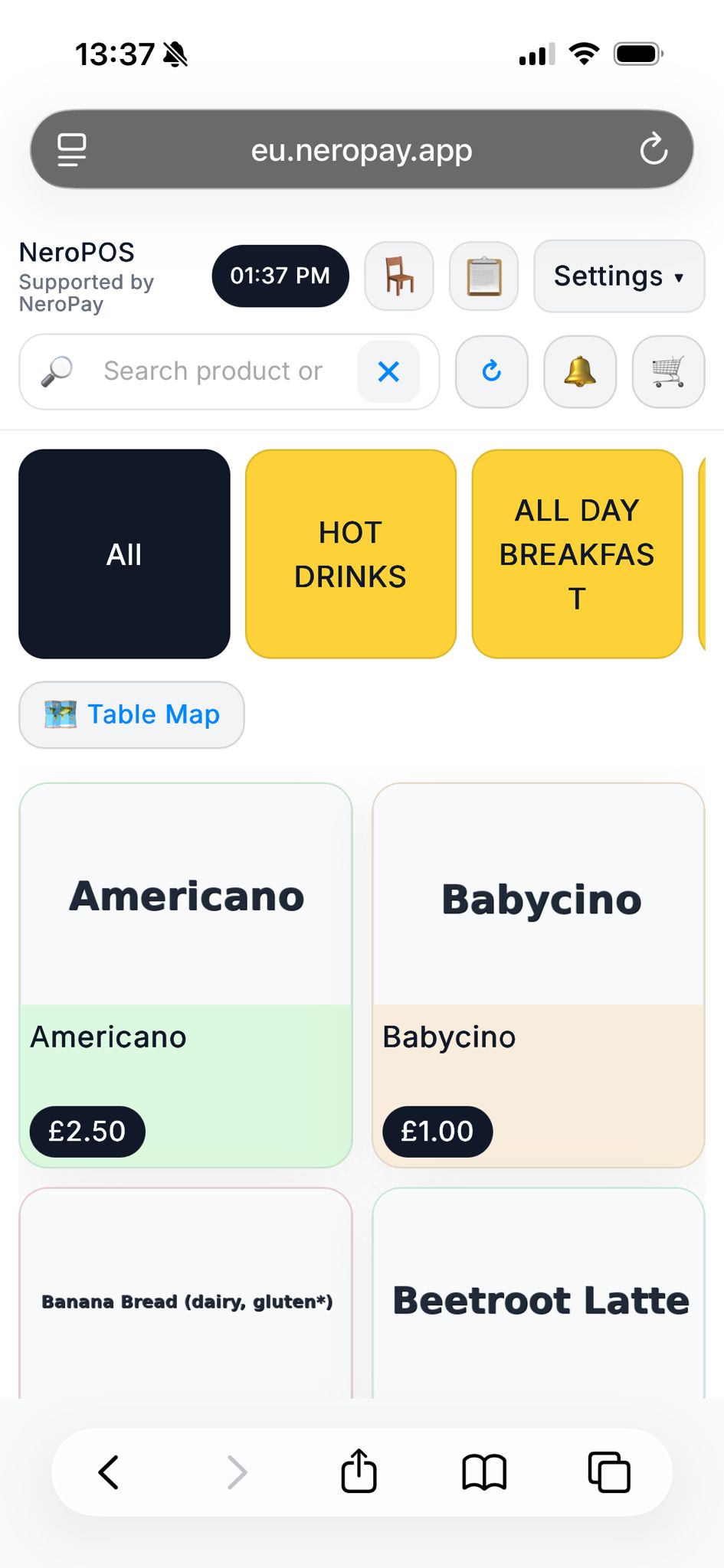
Go to the page you want to save (e.g. EPOS order management), and log in if needed.
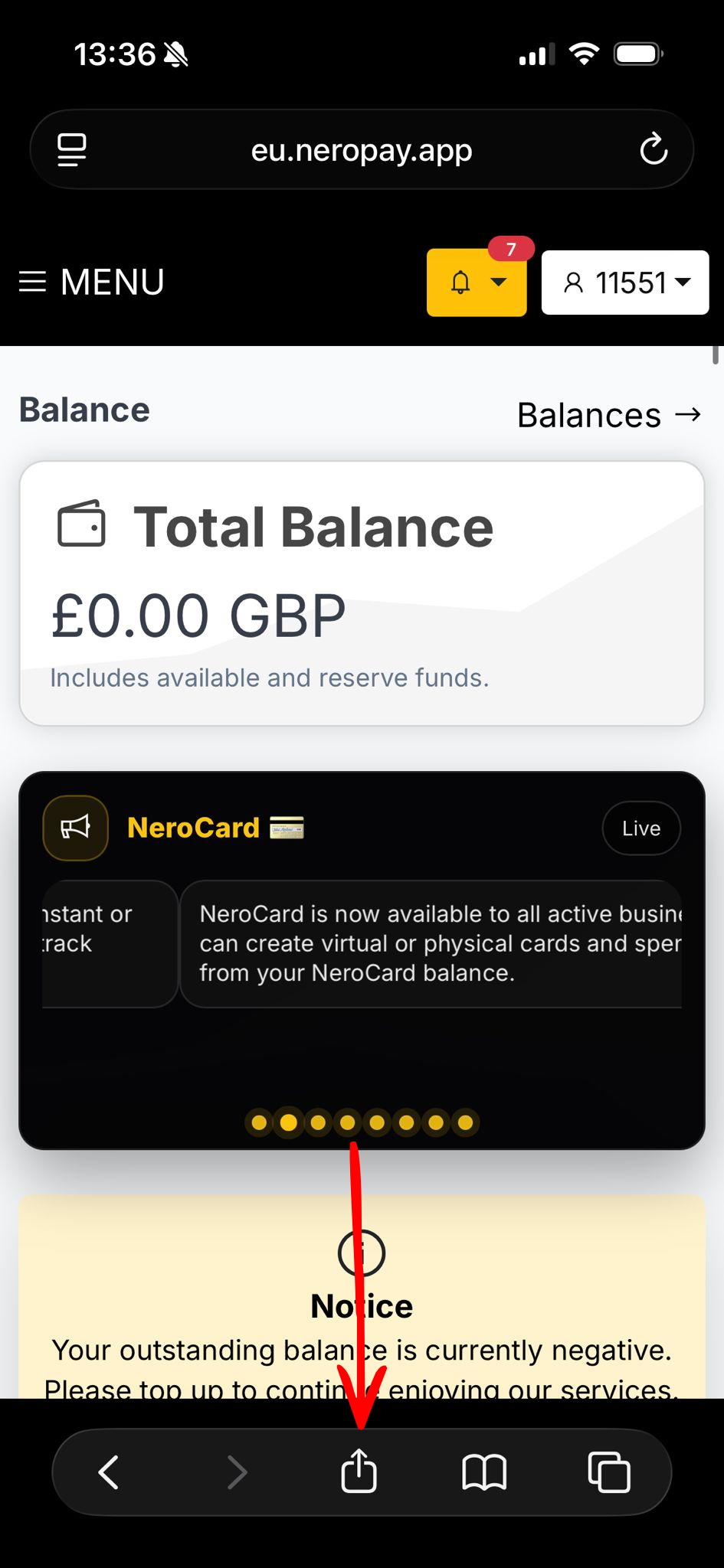
Tap the Share icon
At the bottom of Safari, tap Share (the square with an arrow pointing up).
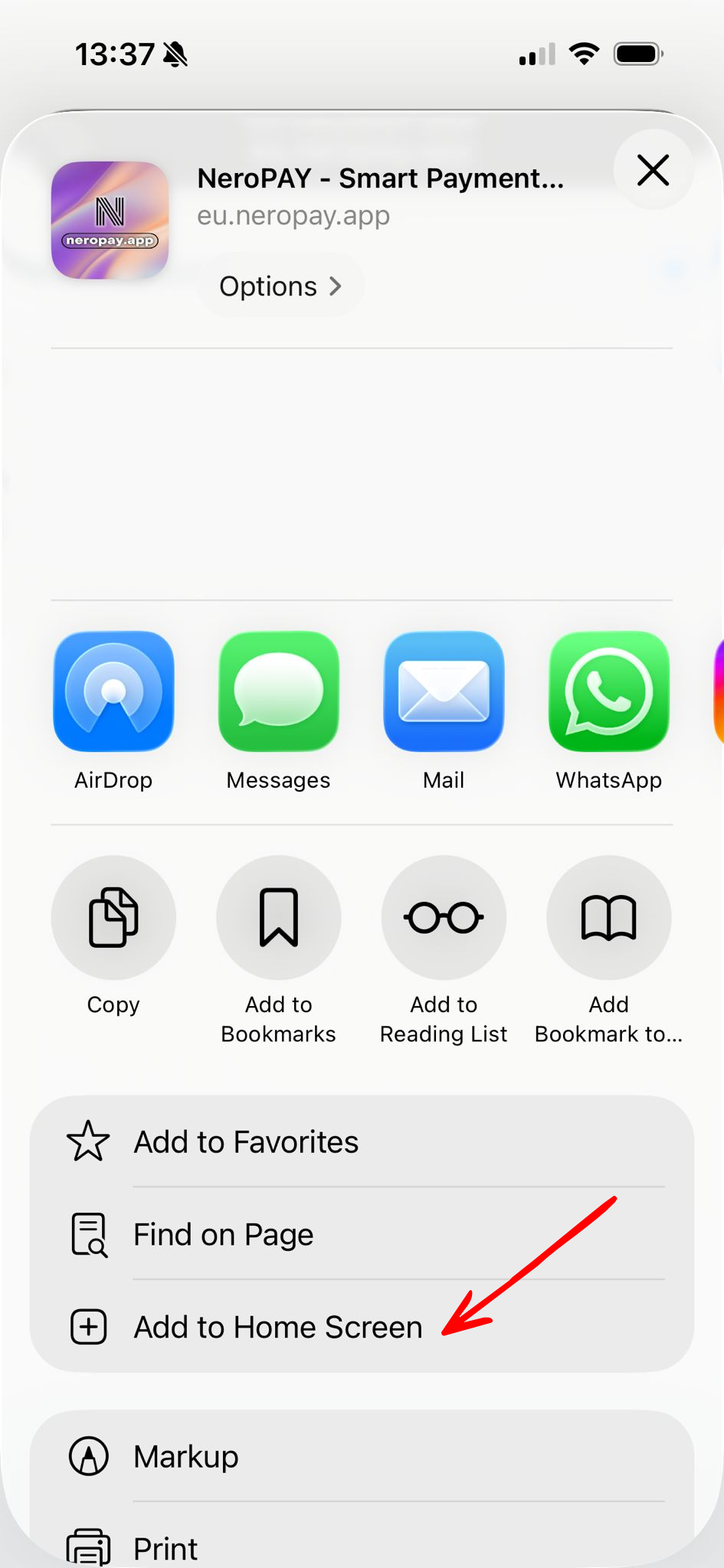
Choose “Add to Home Screen”
In the menu, scroll down and tap Add to Home Screen.
Edit the name (optional)
You can rename it (e.g. NeroPay, NeroPOS, NeroWeb) so it looks clean on the home screen.
Tap “Add”
Tap Add (top right).
Launch it like an app
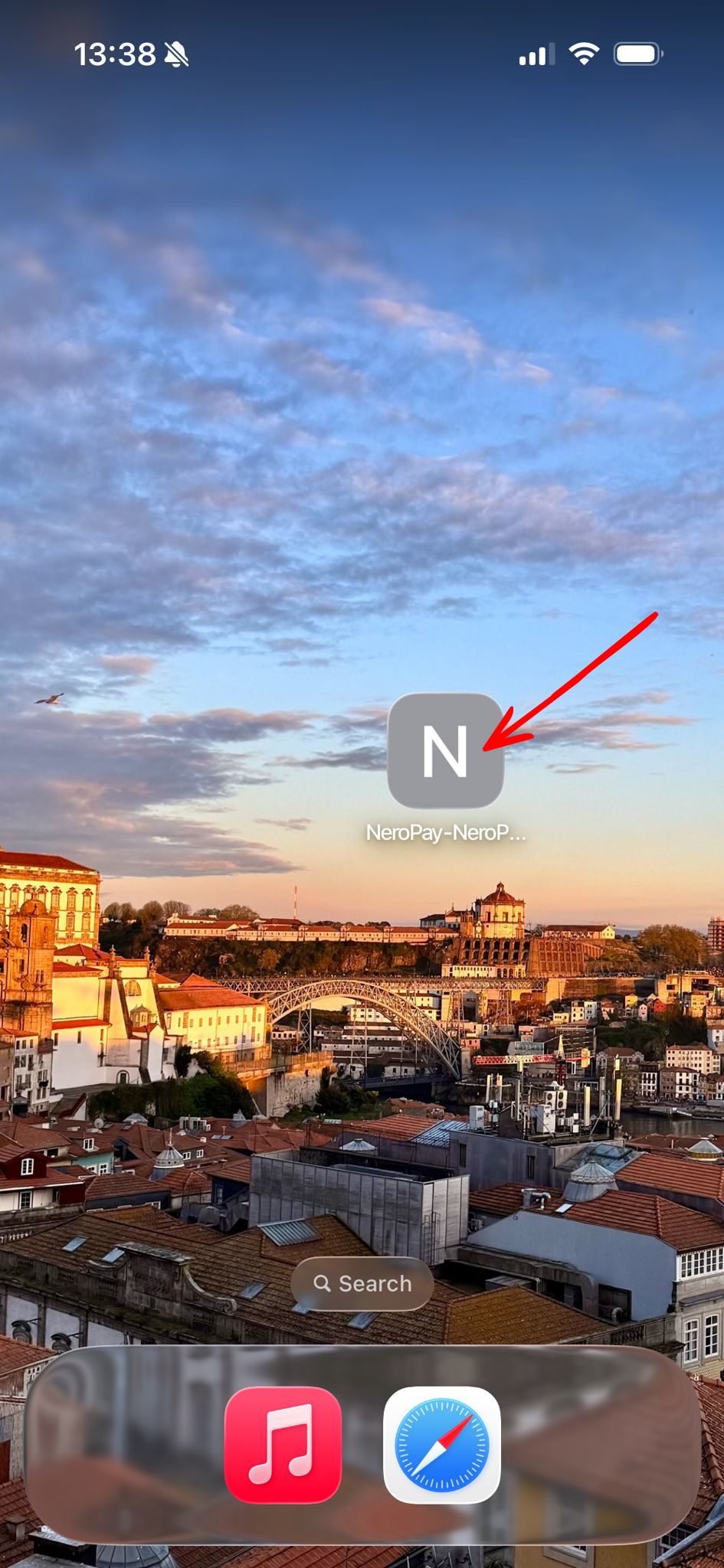
You’ll now see an icon on your Home Screen.
Tap it to open the site in an app-like view (separate from your normal Safari tabs).
Quick tips (to avoid confusion for merchants/staff):
- If you can’t see Add to Home Screen, make sure they are using Safari (not Chrome / in-app browser).
- The icon may show a default “N” unless a site icon is set—it still works the same.
- If you change your password / log out, you may need to log in again inside the “app” shortcut.
If you have any further questions, please reach out to support@neropay.app