Invite a partner from Partner Settings: send them your signup link, add your partner terms, and set the defaults new partners join on. Once they sign up and are verified, you track them in Partner Accounts and Partner Reports.
Set up partner signup
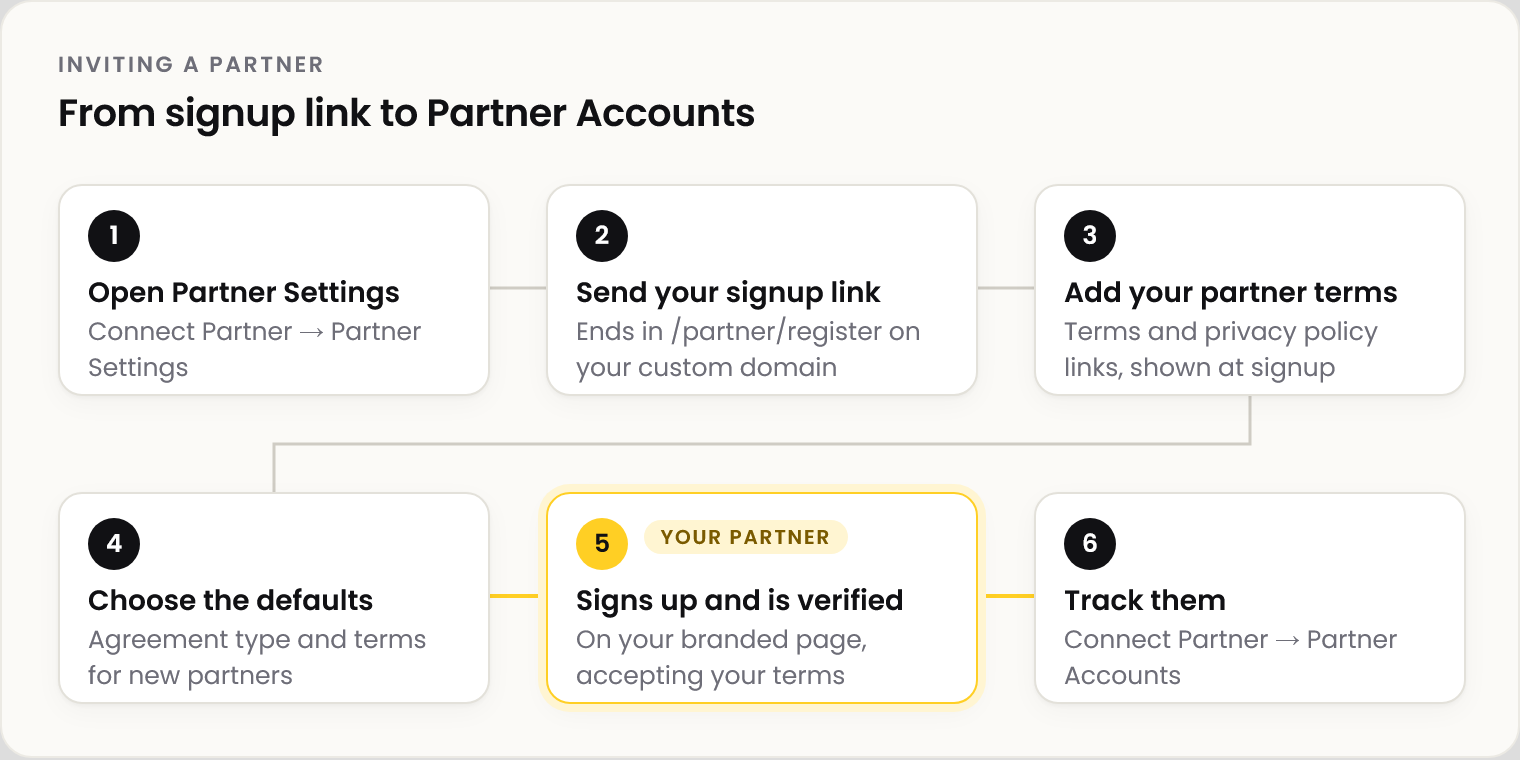
📸 From your signup link to the partner appearing in Partner Accounts.
| Step | What happens |
|---|---|
| 1 | Go to Connect Partner → Partner Settings |
| 2 | Partner signup link: copy it and send it to the business you are inviting. On a verified custom domain it ends in /partner/register |
| 3 | Partner legal pages: add the URLs of your published partner terms and partner privacy policy (HTTPS). They show on the signup page |
| 4 | Partner signup and pricing defaults: choose the agreement type and the terms new partners join on |
| 5 | The partner signs up on your branded page, accepts your terms and the Partner platform agreement, and completes verification |
| 6 | Track them in Connect Partner → Partner Accounts |
💡 Note: Defaults apply to new partner agreements only. Existing partners keep the terms they accepted.
Reading Partner Reports
| Report | What it shows |
|---|---|
| Partner income | What each partner's merchants generated, and each level's share |
| Funds & liability activity | Amounts recorded as owed between your platform, your partner and a merchant when one of you covers a shortfall, every funds movement behind them with dates, and the recovery records |
Example: a shortfall covered
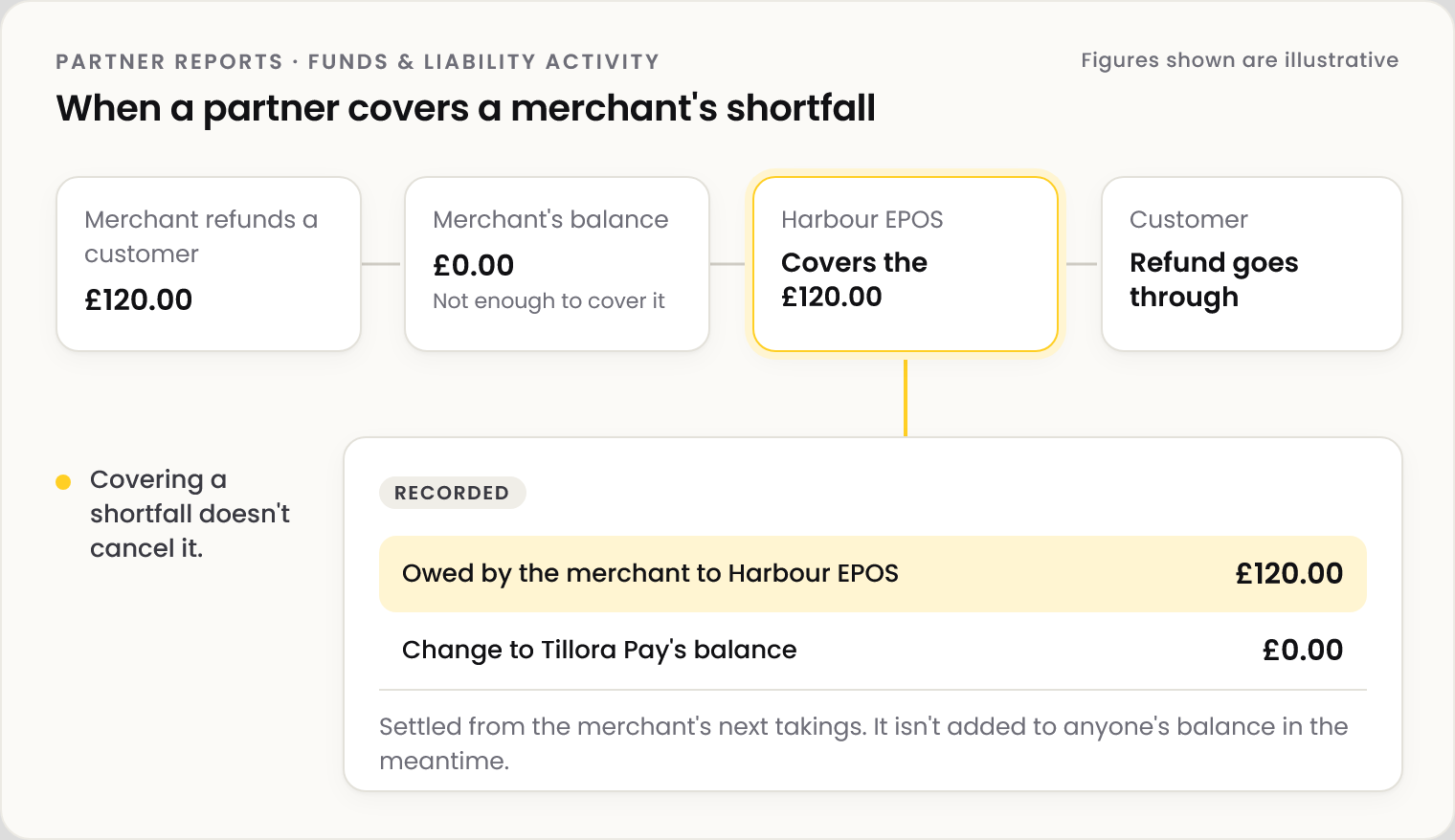
A merchant under Harbour EPOS refunds a customer £120.00 when its balance is £0.00. Harbour EPOS covers it, so the refund goes through.
📸 A shortfall covered by a partner, and what is recorded. Figures shown are illustrative.
| Record | Amount |
|---|---|
| Recorded as owed by the merchant to Harbour EPOS | £120.00 |
| Change to Tillora Pay's balance | £0.00 |
💡 Note: Covering a shortfall does not cancel it. The amount stays on record against the merchant until it is settled from their next takings, and it is not added to anyone's balance in the meantime. Figures shown are illustrative.
Frequently asked questions
Where do partners sign up?
On your own branded signup page, at your custom domain followed by /partner/register.
Do I need my own partner terms?
Yes. Add the links in Partner Settings before you send the signup link. Partners accept them at signup alongside the Partner platform agreement.
Can I change a partner's agreement later?
Not from the signup defaults, which only affect new partners. Contact NeroConnect support to discuss an existing agreement.
Why does a report show money owed to my partner?
Your partner covered a merchant's shortfall. The record shows who covered it and who it is owed by.
Who can see Partner Reports?
Staff with financial permission on your platform, and your partner for its own figures.
Still need help? Contact us at support@neropay.app or create a ticket.