
Connect Leads is where NeroPay shares business leads with your platform. Your team contacts each business, records the outcome and keeps the next step clear, and you see everyone's workload in one place. Find it at NeroConnect → Connect Leads.
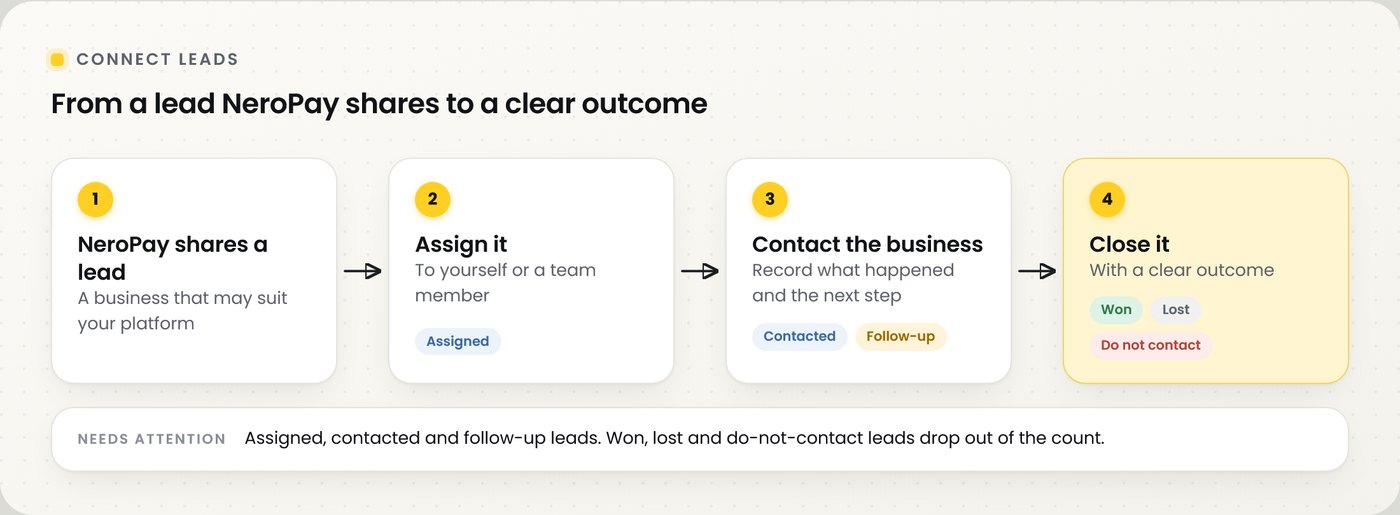
📸 Each lead moves from shared, to assigned, to contacted, to a clear outcome.
Find your way around
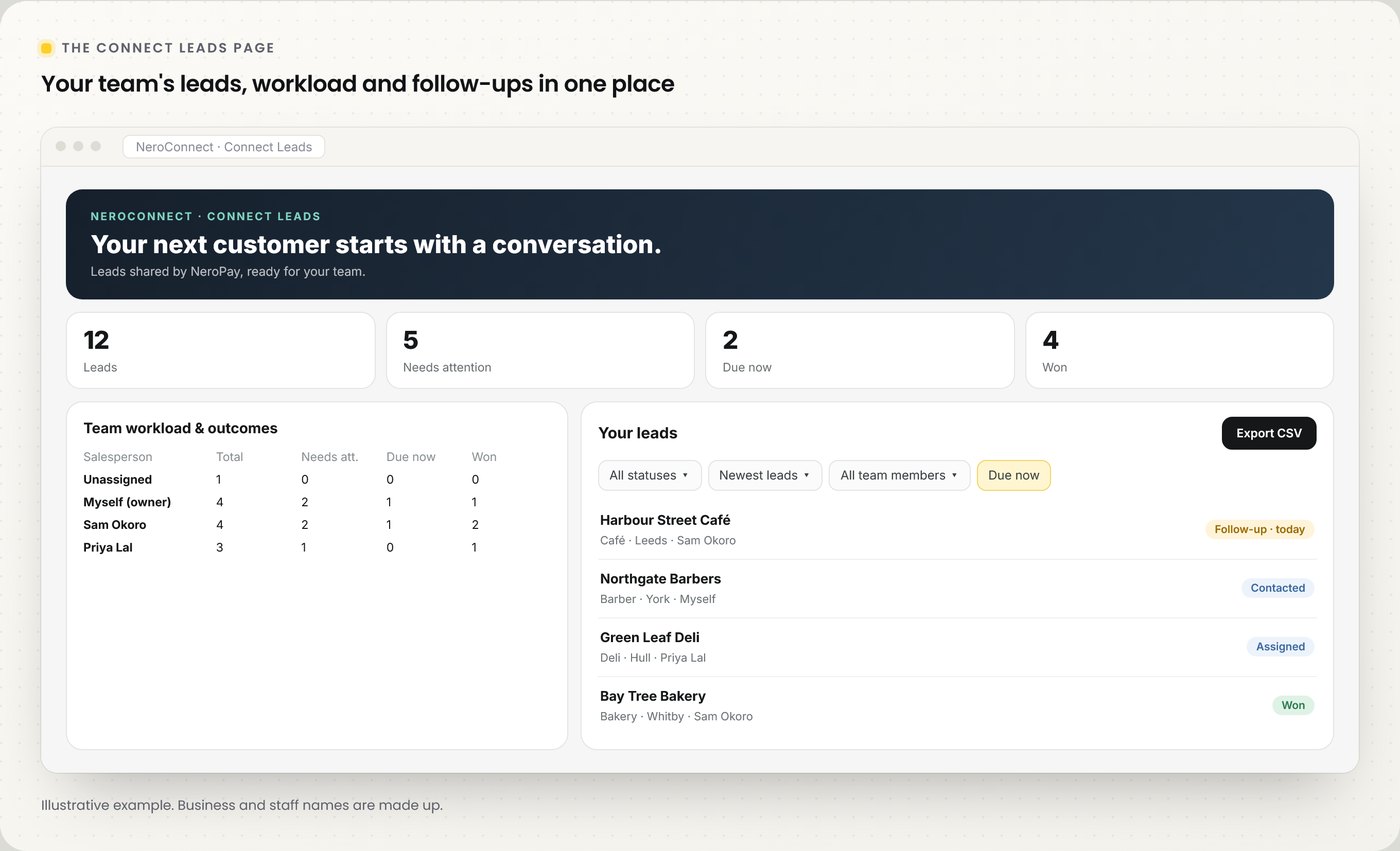
📸 The Connect Leads page.
| Count | What it shows |
|---|---|
| Leads | All leads for the selected salesperson |
| Needs attention | Leads still open: assigned, contacted or follow-up |
| Due now | Follow-ups that are due |
| Won | Leads that became customers |
💡 Note: the counts show totals for the selected salesperson, before any other filters.
Lead statuses
| Status | Use it when |
|---|---|
| Assigned | Someone on your team owns the lead and has not contacted the business yet |
| Contacted | Your team has spoken to the business |
| Follow-up | There is a next step booked with the business |
| Won | The business has become your customer |
| Lost | The business has decided not to go ahead |
| Do not contact | The business has asked not to be contacted |
⚠️ Respect Do not contact. These leads are left out of Needs attention and out of the CSV export.
Team workload and outcomes
The Team workload & outcomes table lists every salesperson, plus Unassigned and Myself (account owner), with their totals for each status. Use it to spread leads fairly and to spot follow-ups that are slipping. Team members whose access is inactive are marked.
Find the right leads
| Filter | What it does |
|---|---|
| Search businesses | Finds a lead by business name |
| Status | Shows one status, or all |
| Sort by | Newest or oldest leads, recently or earliest assigned, or recently updated |
| Assigned salesperson | All team members, only yours, unassigned, or one person |
| Needs attention only | Hides won, lost and do-not-contact leads |
| Date type and dates | Filter by when the lead was created or assigned to your team. Dates are in UTC |
| Follow-ups: Due now | Shows follow-ups that are due |
| Source | For example, leads from payment savings enquiries only |
Export your leads
Select Export CSV to download every lead that matches your filters, across all pages, including email and phone. Do-not-contact leads are left out.
⚠️ Leads contain business contact details. Use them only to talk to that business about your platform, and keep exported files secure.
Frequently asked questions
Where do the leads come from?
NeroPay shares them with your platform. They appear in Connect Leads when they are shared.
Who can work a lead?
You, as the account owner, or a team member you assign it to.
What does Needs attention include?
Assigned, contacted and follow-up leads. Won, lost and do-not-contact leads are excluded.
Why is a lead missing from my export?
It may be filtered out, or marked Do not contact. Do-not-contact leads are never exported.
What time zone are the dates in?
UTC.
Still need help? Contact us at support@neropay.app or create a ticket.