
Connected Accounts is where you create a merchant and manage it afterwards. You create the account; NeroPay verifies the business.
Find a merchant
Go to NeroConnect → Connected Accounts. Search by business name, email, username, Merchant ID or NeroConnect Account ID, or filter by country, onboarding and connection.
📸 The register: each merchant's account mode, channel, onboarding and KYC. Demo data.
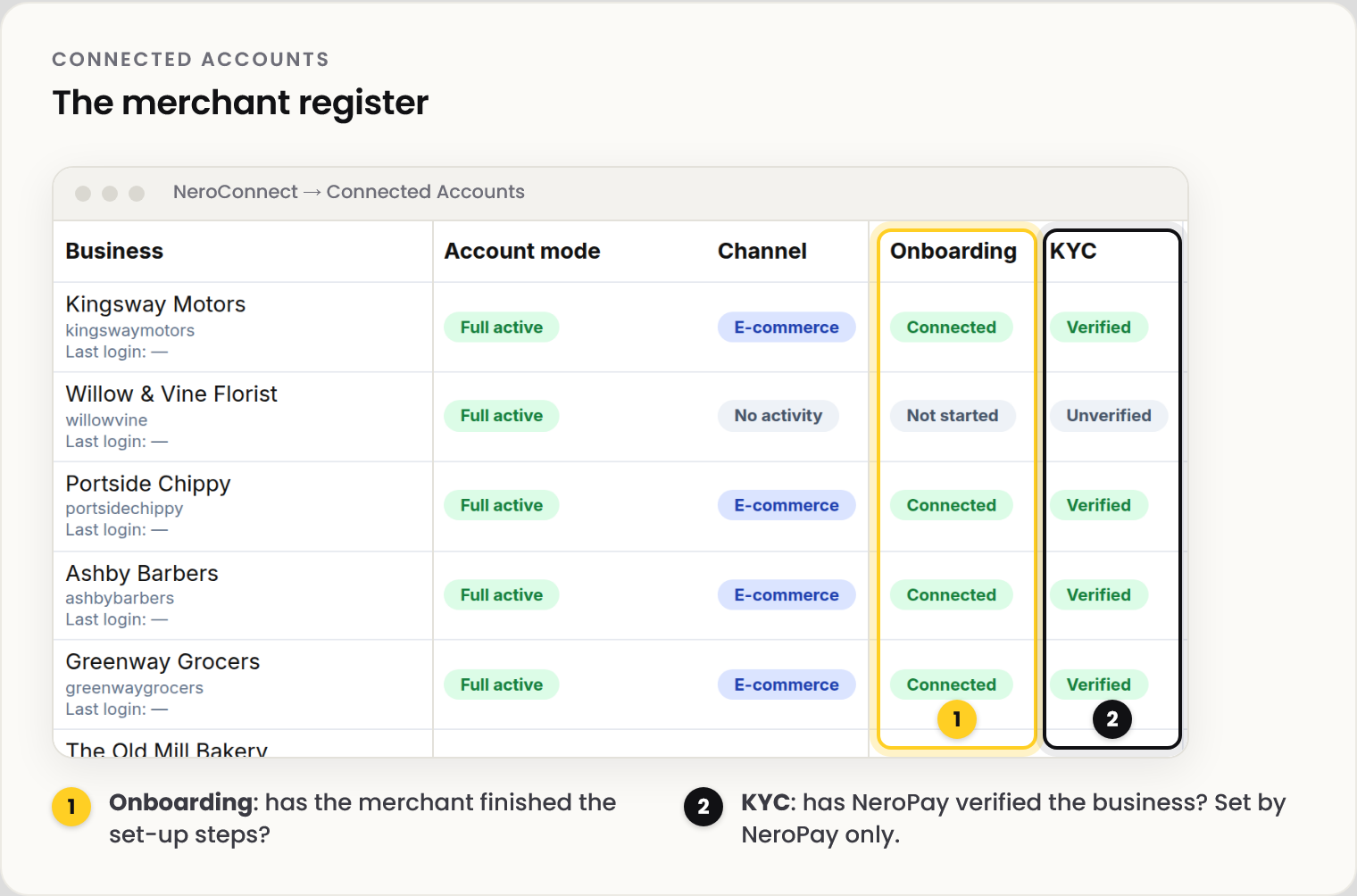
| Column | What it tells you |
|---|---|
| Account mode | Full active, or Deactivated by your platform |
| Channel | Where the merchant has actually taken payments: E-commerce, Terminal or No activity |
| Attention | A stalled onboarding step, with a Send reminder control |
| Onboarding | Connected · Pending · Not started |
| KYC | Verified or Unverified. Set by NeroPay, never by your platform |
💡 Note: An account can be Connected and still Unverified while NeroPay's check completes.
Create a merchant
Select New connected merchant. Each step is checked before the next opens.
📸 The five steps of the New connected merchant wizard.
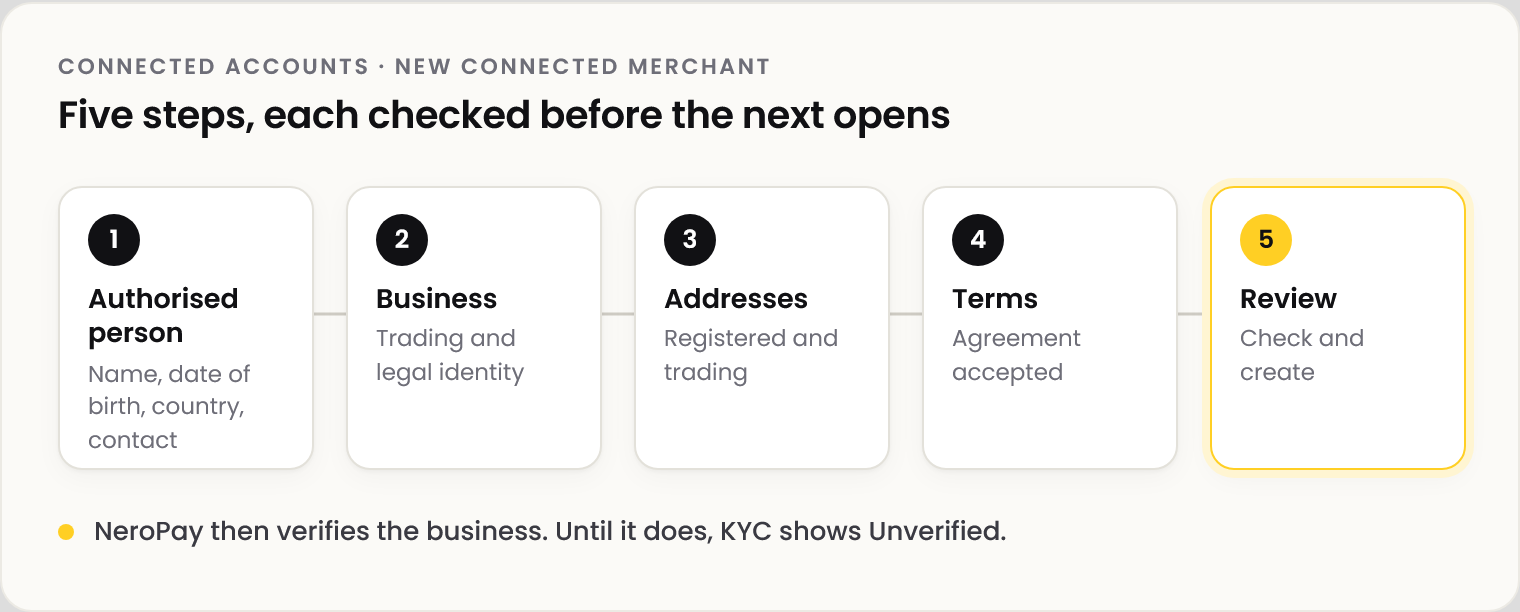
| Step | What you enter |
|---|---|
| 1 · Authorised person | Name, nationality, date of birth, account country, email and mobile. Minimum age 13 |
| 2 · Business | Trading and legal identity |
| 3 · Addresses | Registered and trading addresses |
| 4 · Terms | Agreement acceptance |
| 5 · Review | Check the details and create the account |
💡 Note: Account country must be a NeroPay-supported country and sets the account's home market. Nationality is the person's citizenship and can be any country.
Manage one merchant
Select View on any row. The account panel opens with four balances and the tools for that merchant. View dashboard as connected account shows the merchant's own dashboard, as they see it.
📸 One merchant's account panel: the four balances and the tabs.
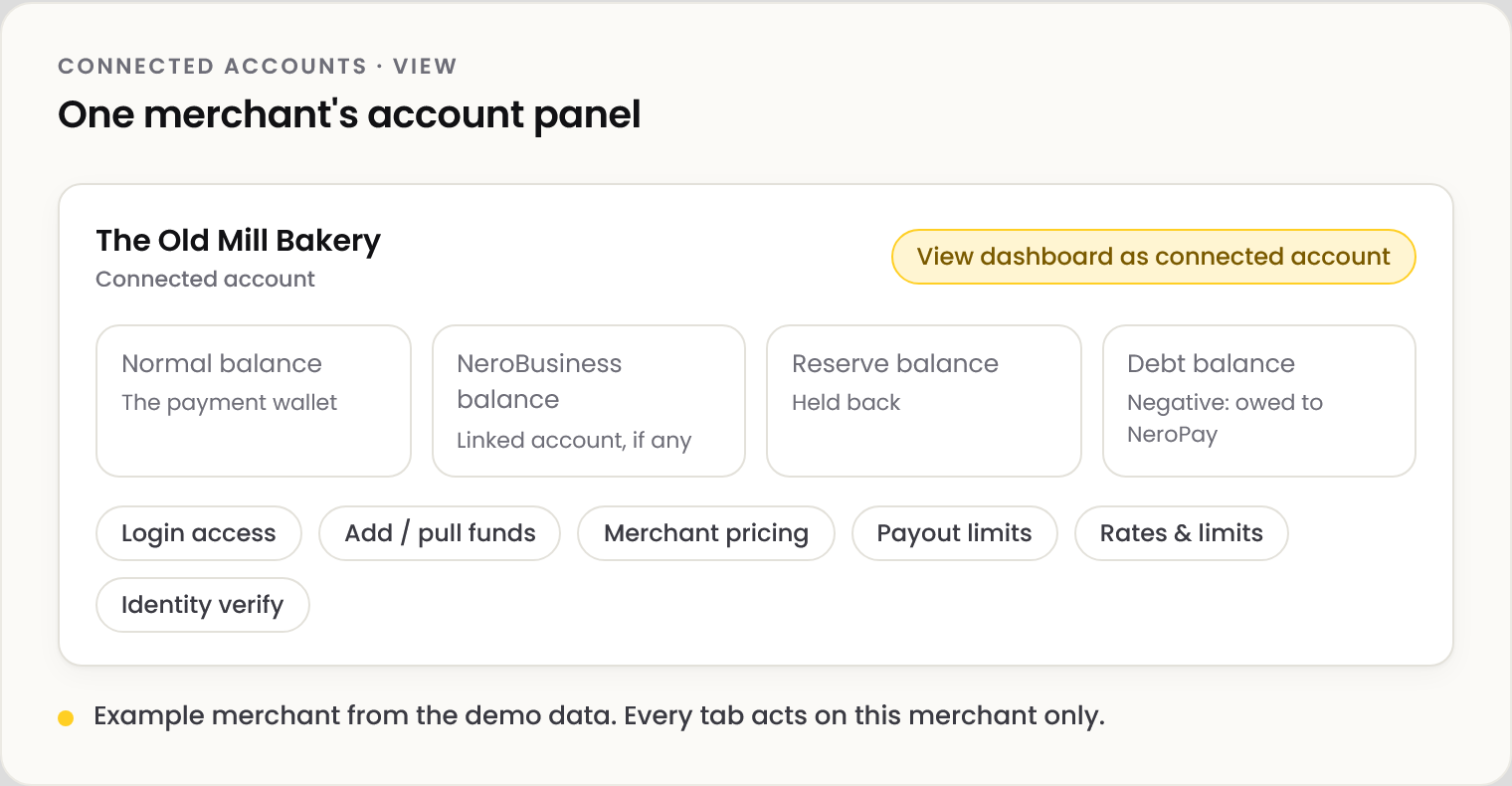
| Tab | What it does |
|---|---|
| Login access | Send login invitation, or Set password once (one use only; then the normal reset flow) |
| Add / pull funds | Send funds to the merchant or pull them to your platform, to settle a shortfall or recover an overpayment |
| Merchant pricing | This merchant's own prices, overriding your defaults. See Pricing your merchants |
| Payout limits | This merchant's limits. They can only be made stricter. See Payout limits |
| Rates & limits | Read only: what is actually in force. Check here when a merchant asks what they pay |
| Identity verify | Create a verification link and send it straight away; links expire quickly |
Deactivate a merchant
Select Deactivate Connected Account at the foot of the panel. Its Account mode changes to Deactivated, and you can reverse it.
⚠️ Your deactivation sits alongside anything NeroPay has done. It does not override a NeroPay compliance action, and reactivating from your side does not lift one.
Frequently asked questions
Why can't I move to the next step of the wizard?
Each step is checked first. Make sure every field is complete, the person is at least 13 and the account country is supported.
Why does a new merchant show Unverified?
Creating the account and verifying the business are two steps. NeroPay runs the check after the wizard; until it finishes, KYC reads Unverified.
The verification link has expired. What now?
Open Identity verify, select Create new link and send it straight away.
Can I raise a merchant's payout limit above NeroPay's?
No. Limits only move one way: NeroPay sets the cap, and your values can only lower it.
Still need help? Contact us at support@neropay.app or create a ticket.