
You set your own fee on every payment and your price for each additional service. NeroPay sets who pays its processing fee, the floor under each service and the payout caps.
📸 Who sets what, and which value wins.
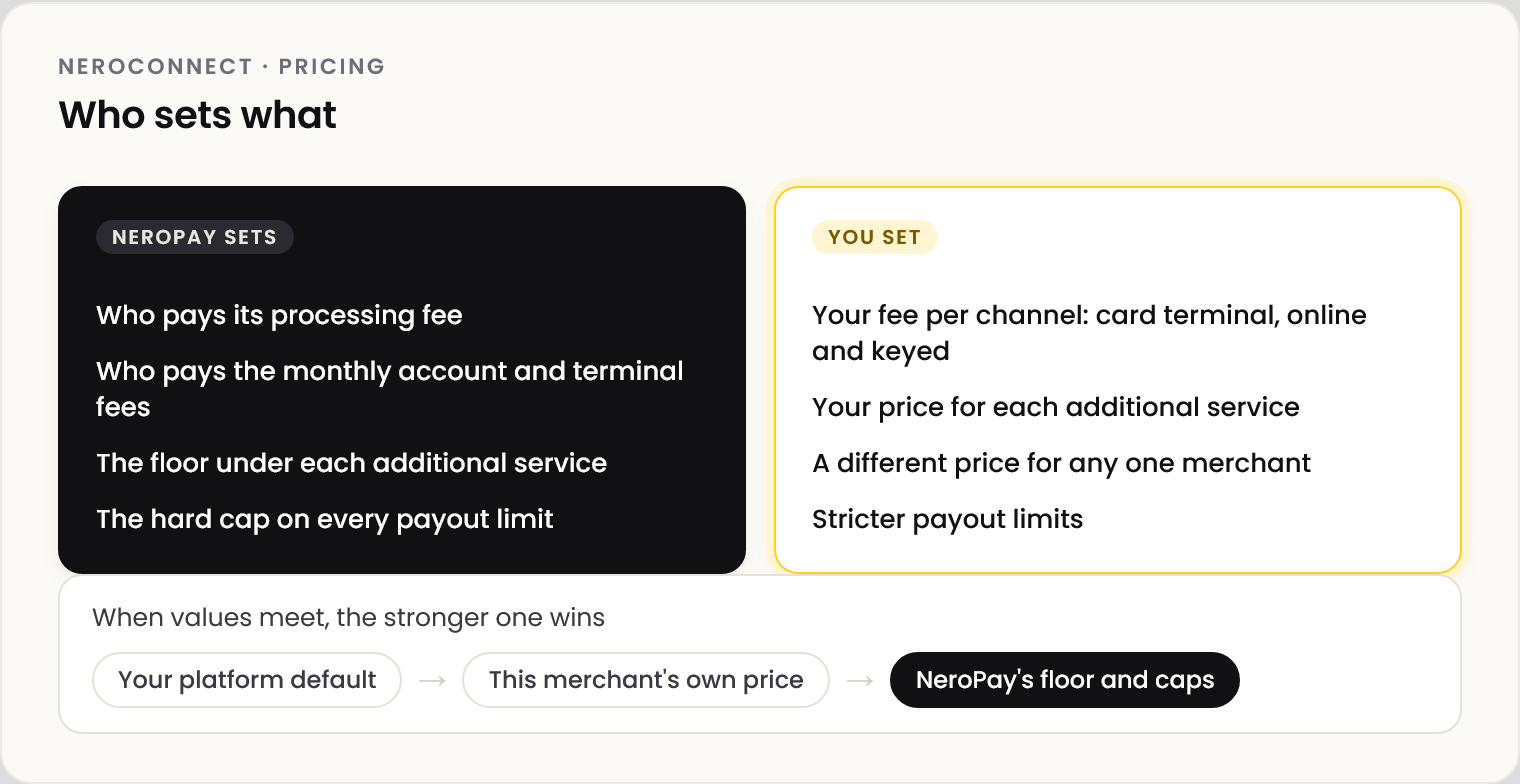
Set your defaults
Go to NeroConnect → Settings → Pricing. Below the two read-only panels, set the pricing every new merchant starts with. Each group takes a fixed fee and a percentage fee.
| Group | Applies to |
|---|---|
| Online Payment API | Online, API and store-order payments |
| Card Terminal | Physical terminal payments |
| Manual Keyed Card | Keyed and virtual terminal payments |
| Additional services | SMS, non-UK cards, extra payment methods, instant payouts and refunds. See Additional services |
💡 Note: Defaults apply to merchants you create afterwards. Existing merchants keep their prices, except an older account whose pricing is all zero, which inherits the default.
Price one merchant differently
Open the merchant in Connected Accounts and use its Merchant pricing tab. The fields are the same and override your default. NeroPay's floor and caps still apply.
Who sees fee detail
📸 Two fee-detail controls, two audiences.
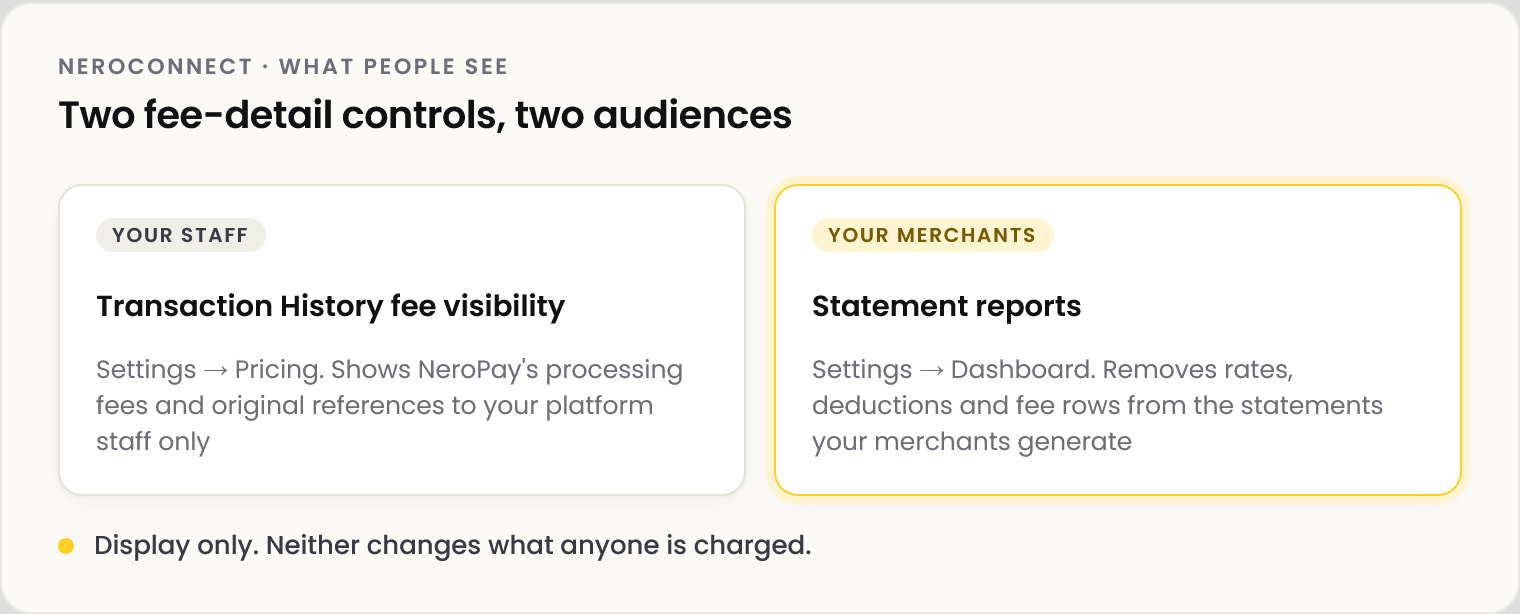
| Control | What it does |
|---|---|
| Show NeroPay fee (Settings → Pricing) | Shows NeroPay's processing fees and original transaction references to your staff in Transaction History |
| Statement reports (Settings → Dashboard) | Hides rates, deductions and fee rows on merchant statements. Saves with its own button |
⚠️ Existing statements change only when regenerated, and a copy a merchant has downloaded can't be recalled.
The same Dashboard tab lets you hide whole modules from your merchants' menus, such as NeroAI, Payment Links or Disputes. Hiding a module changes the menu only, never what a merchant is signed up to.
Frequently asked questions
Do I set my merchants' prices, or does NeroPay?
You set your fee and your service prices. NeroPay sets who pays its processing fee, the floor under each service and the payout caps.
The fee I entered changed after saving. Why?
It was below the protected base for that service, so the base was applied. Enter a value at or above it.
Will my merchants see NeroPay's cost?
No. Show NeroPay fee reveals it to your staff only.
How do I change who pays the processing fee?
Use Contact NeroPay on the Pricing tab. See Choosing your partnership mode.
Still need help? Contact us at support@neropay.app or create a ticket.